Ticket types are the options buyers choose from when they purchase, such as General Admission, VIP, or a free ticket. Each ticket type has its own price and quantity.
In the left menu, select Events.
Select the ⋯ menu at the end of your event's row, then select Open Command Center.
Select the Tickets tab.
Each ticket type shows its name, status, price, how many have sold, how many remain, and the total quantity.
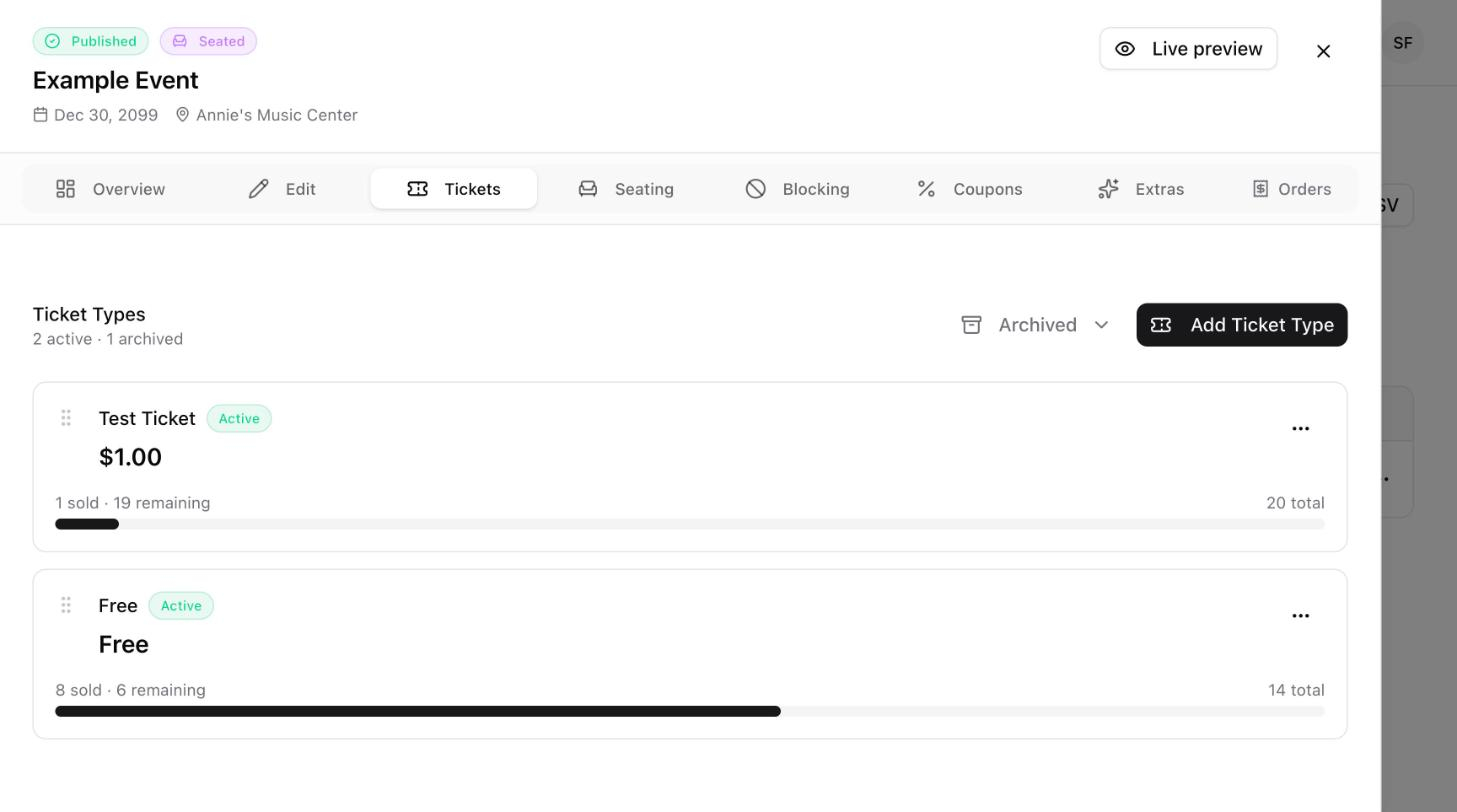
Select Add Ticket Type. The New Ticket Type form opens.
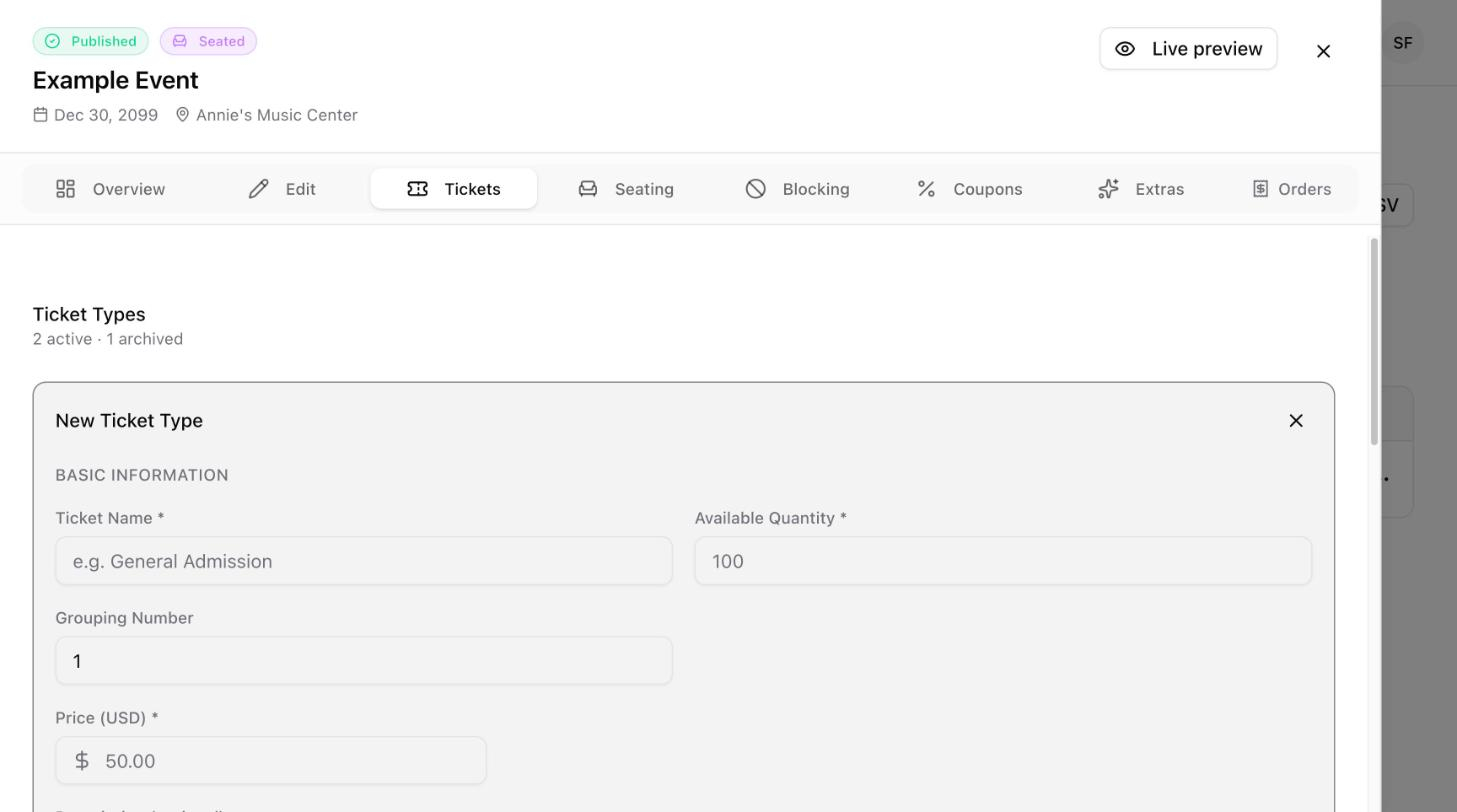
Fill in the basic information.
Field | What to enter |
|---|---|
Ticket Name | The name buyers see, for example |
Available Quantity | How many of this ticket can be sold. Required. |
Price (USD) | The price of one ticket. Required unless the ticket is free. |
Description | Optional. Describe what is included with the ticket. |
Scroll down to Settings and choose the options you need.
Setting | What it does |
|---|---|
Free Ticket | Makes this ticket type free, with no charge to the buyer. |
Active | Keeps the ticket type visible and available for purchase. Turn it off to hide it. |
Force Sold Out | Marks the ticket type as sold out, even if tickets are still available. |
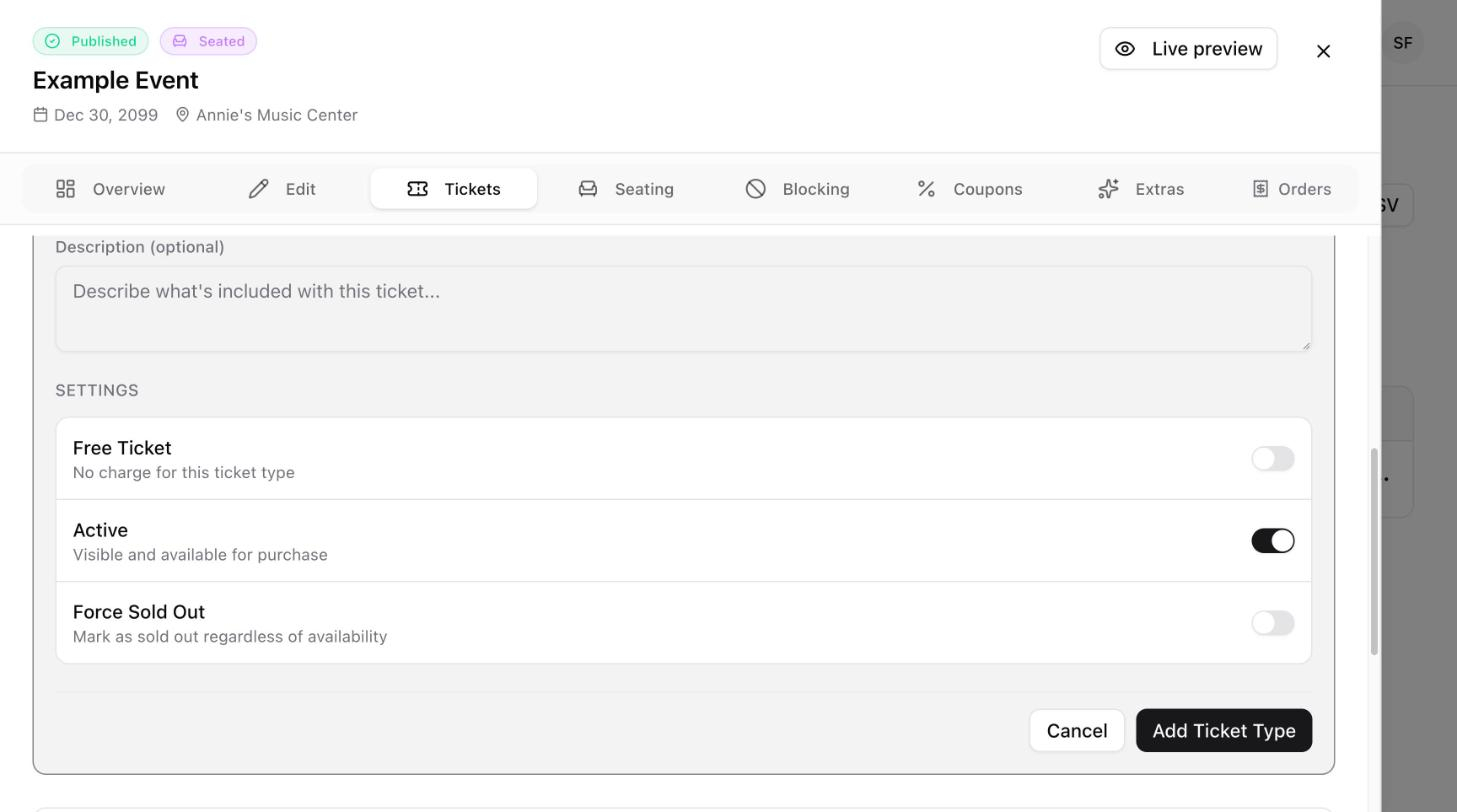
Select Add Ticket Type to save.

Drag the six-dot handle on the left of a ticket type up or down to change the order of your ticket types.
Select the ⋯ menu on the ticket type.
Select Edit to change its details, or Archive to retire it.
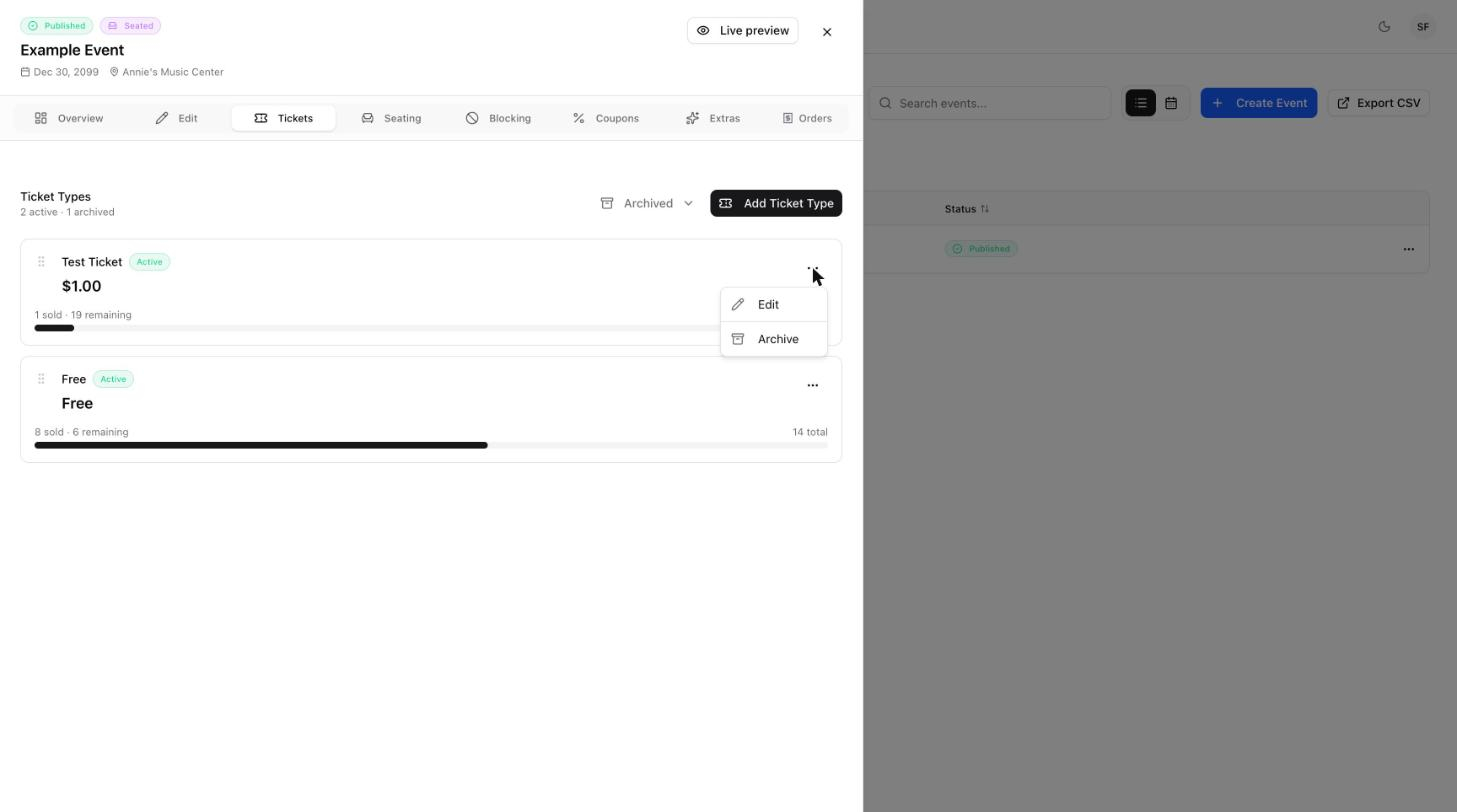
The line under Ticket Types shows how many ticket types are active and how many are archived. Select Archived to see the ticket types you have archived.
