Live preview shows your event page next to the Command Center while you build it. You see exactly what buyers will see, and the preview updates as you type, so you can check your work before the event goes on sale.

In the left menu, select Events.
Select the ⋯ menu at the end of your event's row, then select Open Command Center. A new event opens in the Command Center automatically as soon as you create it.
Select Live preview in the top right of the Command Center.
The preview opens on the right, and the Command Center stays on the left so you can keep working.
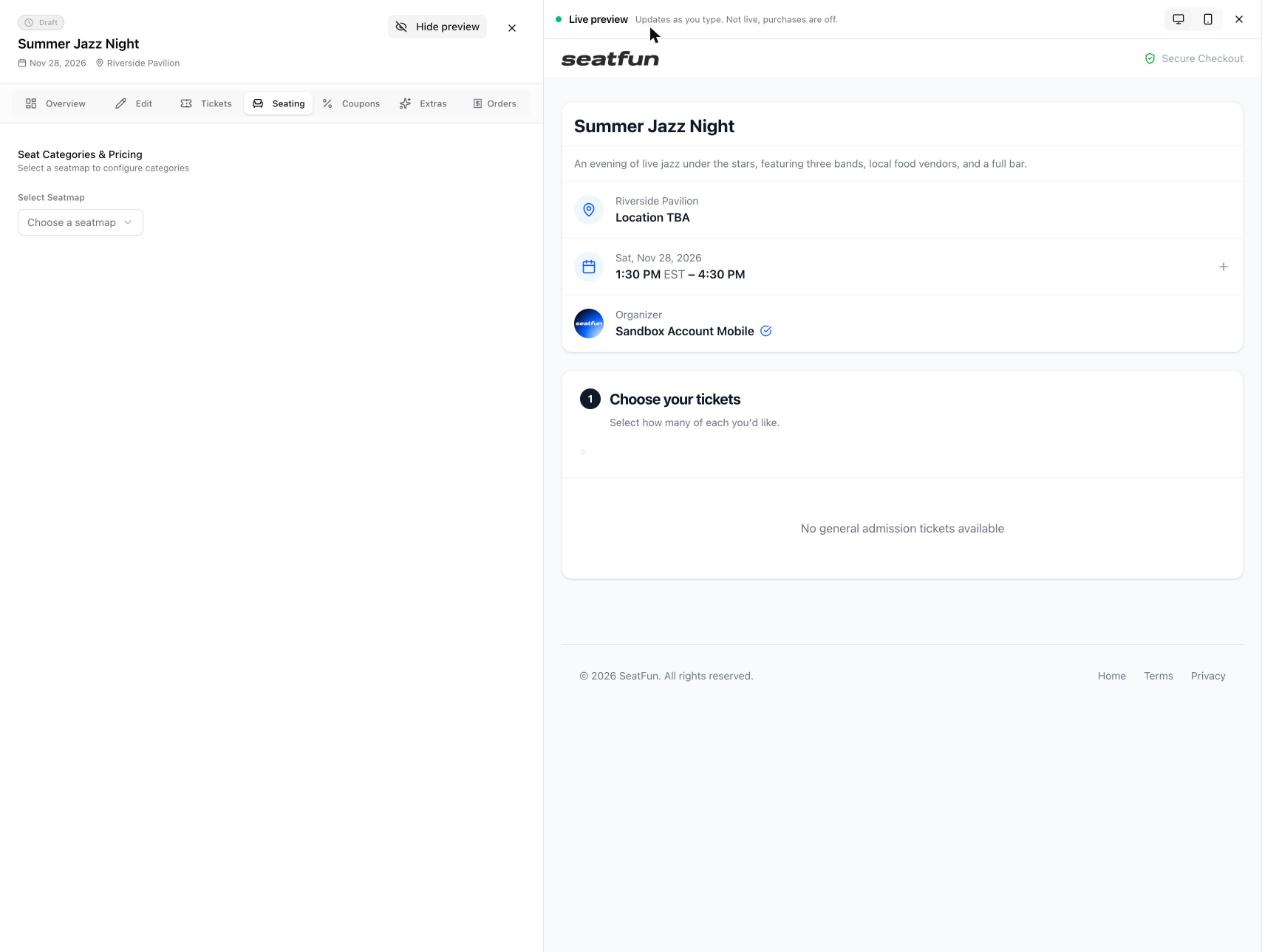
The preview updates as you type. You don't need to save first.
For example, when you add a ticket type on the Tickets tab, the ticket appears in the preview with its name and price while you are still filling in the form.
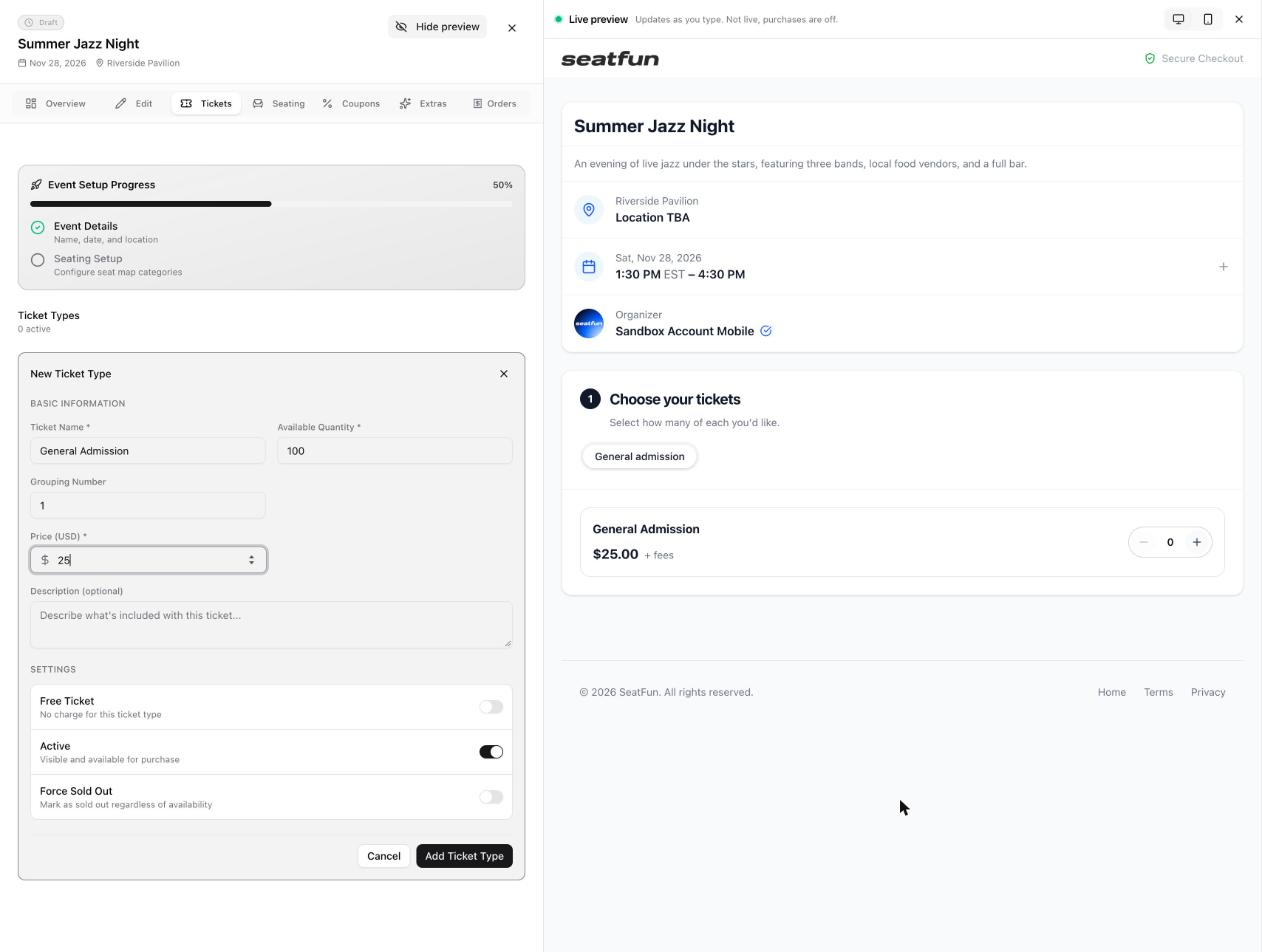

Use the two icons in the top right of the preview to switch views.
Select the phone icon to see the page as it appears on a mobile phone.
Select the desktop icon to return to the full-width view.
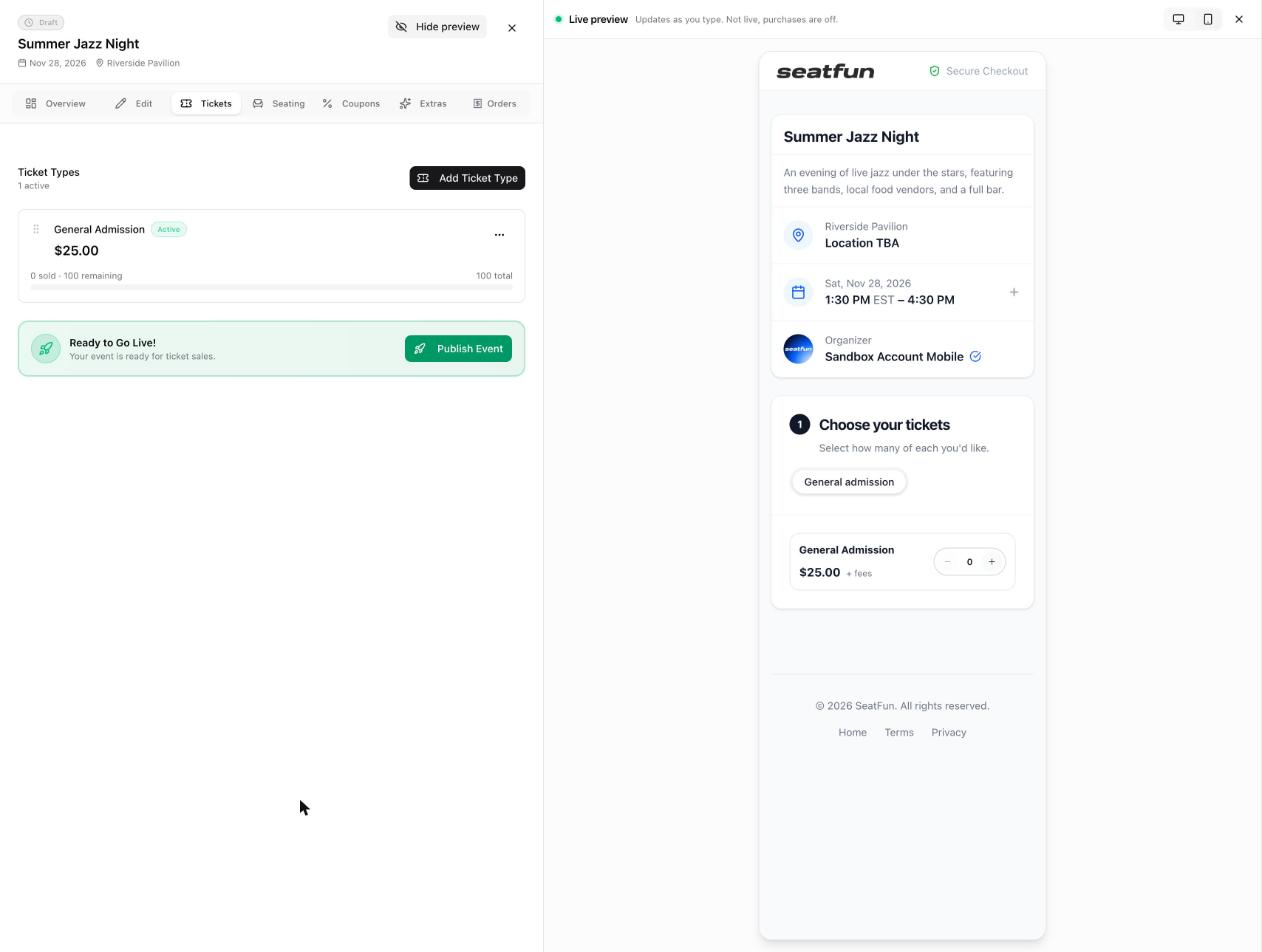
Select Hide preview at the top of the Command Center, or select the X in the top right of the preview.
The title, description, date, and time are correct.
The venue name and address are shown.
Every ticket type appears with the right name and price.
The event image looks right in both the desktop and phone views.
