The Events page lists every event in your account. From here you can find an event, check its status, and open the tools to manage it.
In the left menu, select Events. Each row shows the event's name and ID, its date and start time, and its status.
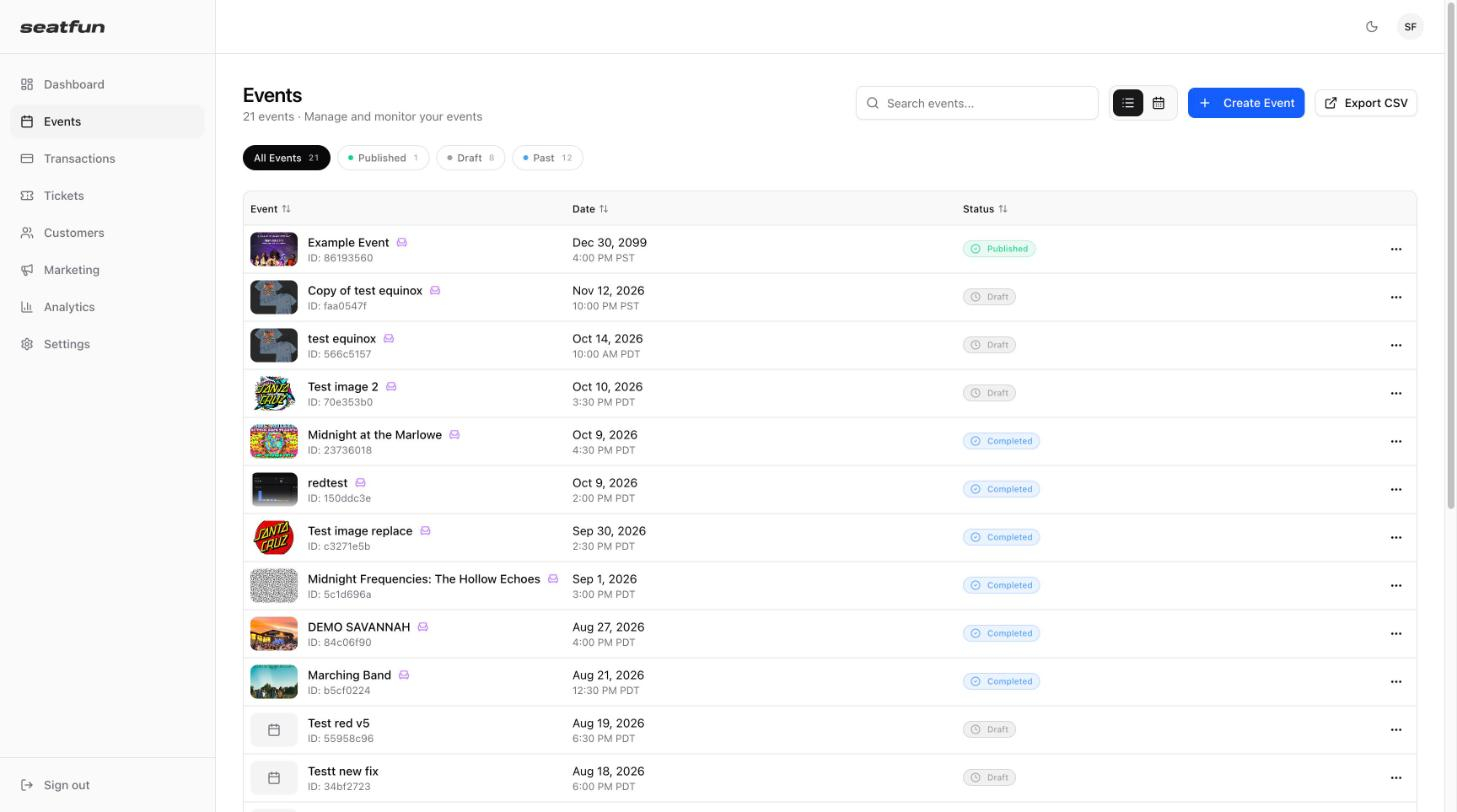
Filter by status: Use the tabs above the list: All Events, Published, Draft, and Past. The number on each tab shows how many events it contains.
Search: Type part of an event name in Search events.
Sort: Select the Event, Date, or Status column heading to sort the list by that column.
Select the calendar icon next to the search box to see your events on a calendar. Each event appears on its date with its start time and status.
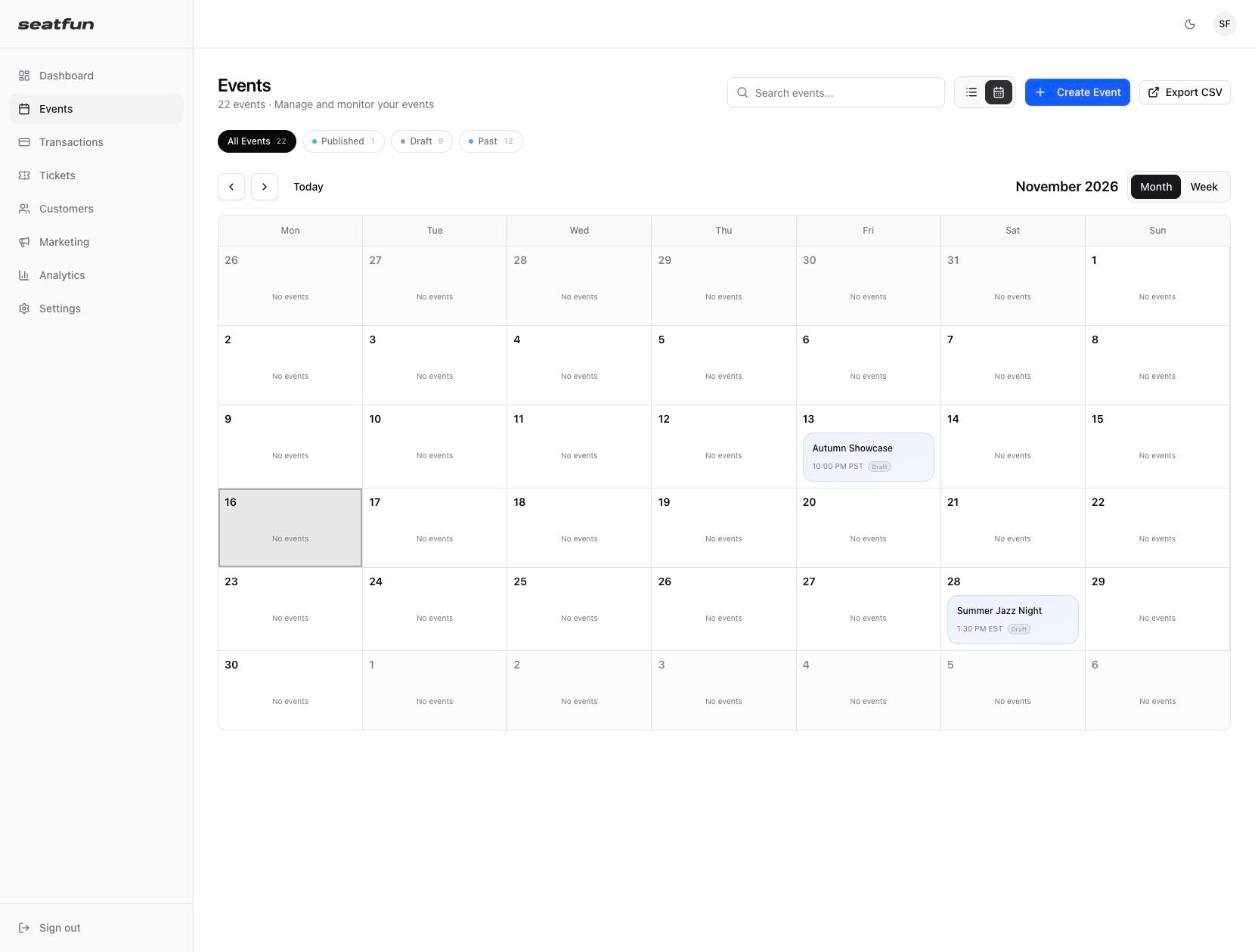
Use Month or Week to change how much time is shown.
Use the arrows to move backward or forward, and Today to jump back to the current date.
Select the list icon to return to the list.
Select the ⋯ menu at the end of an event's row to see its actions.
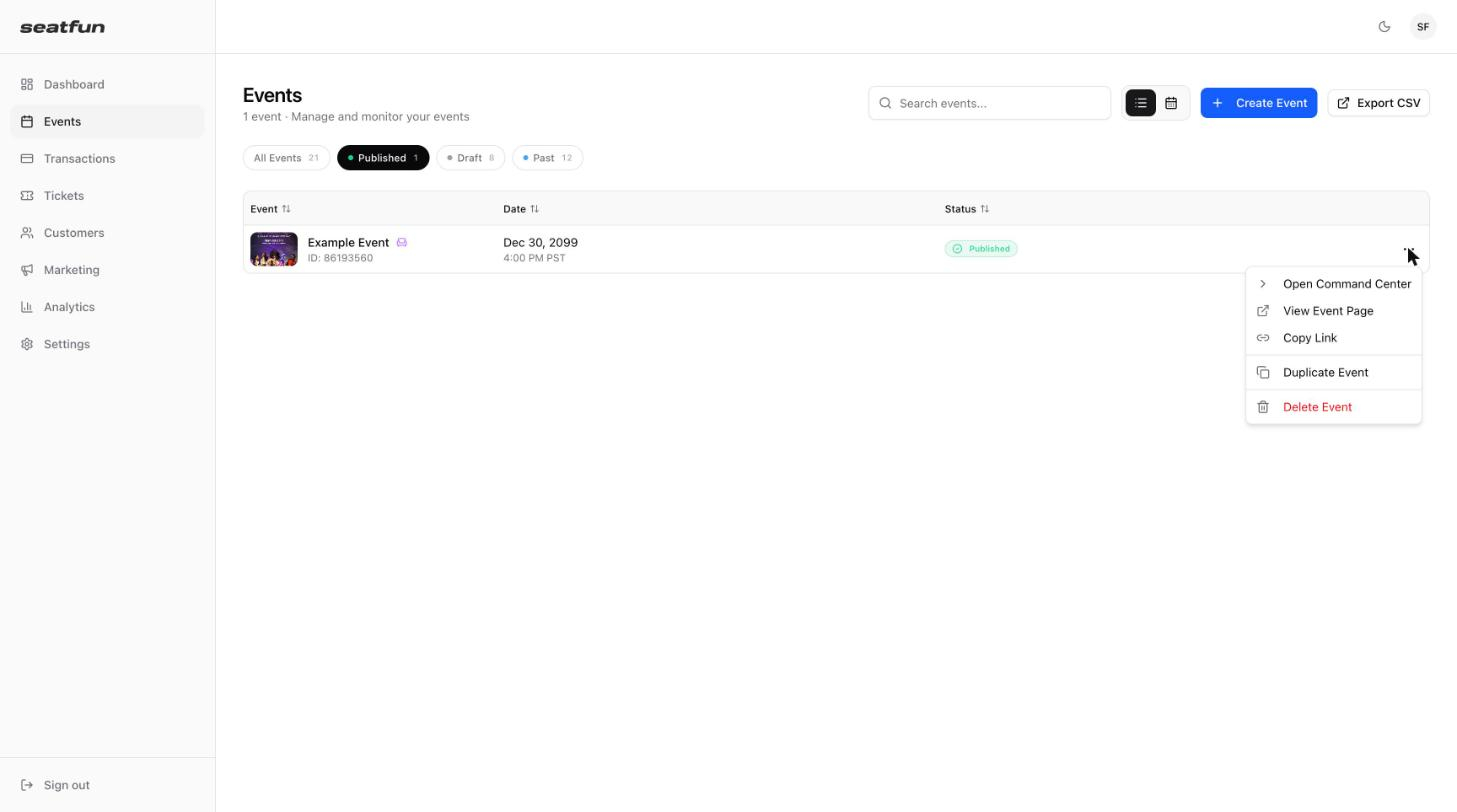
Action | What it does |
|---|---|
Open Command Center | Opens the event's control panel, where you manage tickets, seating, discount codes, and orders. |
View Event Page | Opens the public page where buyers purchase tickets. |
Copy Link | Copies the link to the public event page so you can share it. |
Duplicate Event | Creates a copy of the event that you can edit and reuse. |
Delete Event | Removes the event from your account. |

Select Export CSV in the top right to download your events list as a spreadsheet file.
