
Tracking pixels let your advertising tools see when someone views your event pages or buys a ticket, so you can measure and improve your ads. SeatFun supports a Facebook Pixel and Google Tag Manager, and both apply to all of your events.
Choose the right option
Option | Use it when |
|---|---|
Facebook Pixel ID | You only run Facebook and Instagram (Meta) ads. |
Google Tag Manager Container ID | You use several tools, such as Facebook, Google Analytics, and TikTok, and want to manage them all in one place. |

Add your tracking IDs
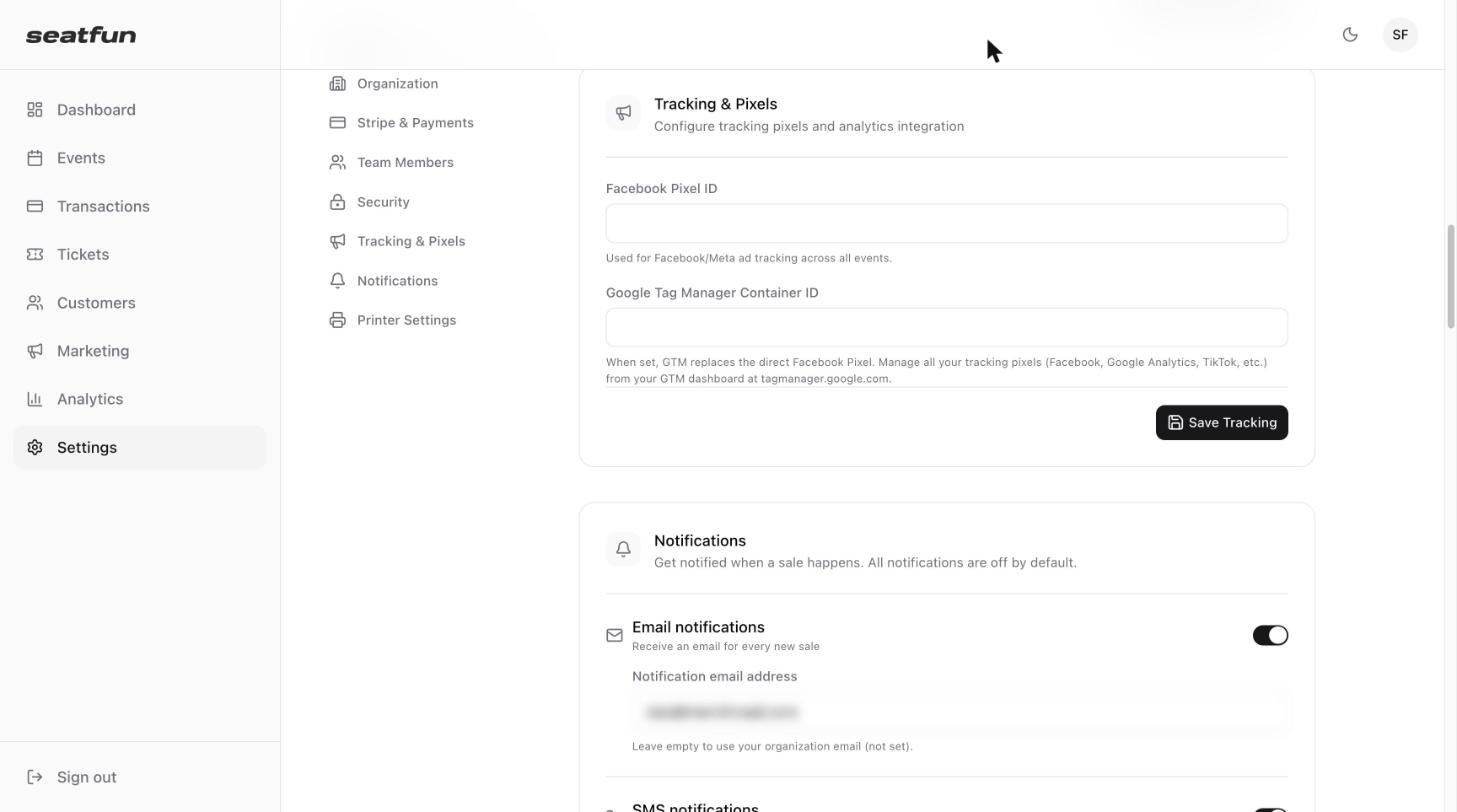
In the left menu, select Settings.
Select Tracking & Pixels in the settings menu.
Enter your Facebook Pixel ID, your Google Tag Manager Container ID, or both.
Select Save Tracking.
Where to find your IDs
Facebook Pixel ID: In Meta Events Manager, open your data source. The ID is the number shown under the pixel's name.
Google Tag Manager Container ID: In Google Tag Manager at tagmanager.google.com, the ID appears next to your container's name and starts with
GTM-.
Remove tracking
Clear the field you no longer need and select Save Tracking.
