Add the people who help run your events as team members. Each person gets their own sign-in and a role that controls what they can see and do.
Role | What it is for |
|---|---|
Owner | The person who owns the organization's account. |
Admin | Manages the team and settings. |
Staff | Views transactions. |
Scanner | Scans tickets at the door. |
In the left menu, select Settings.
Select Team Members in the settings menu.
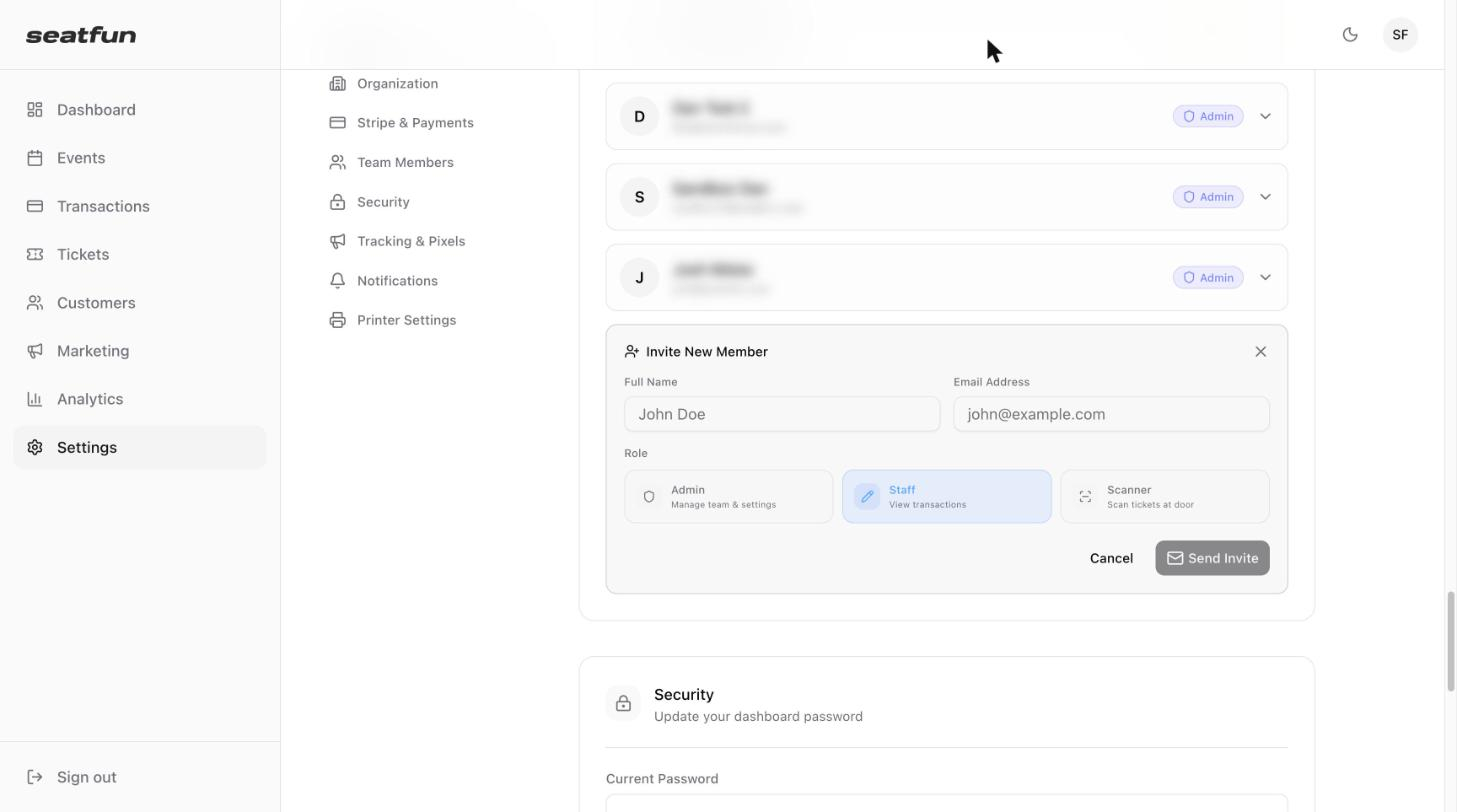
Select Invite Team Member below the list of members.
Enter the person's Full Name and Email Address.
Choose a Role: Admin, Staff, or Scanner.
Select Send Invite.
Setting | What it means |
|---|---|
Default | Follows the person's role. The text next to the permission shows whether the role turns it on or off. |
On | Gives this person the permission, even if their role does not include it. |
Off | Removes the permission from this person, even if their role includes it. |
The Team Members list shows everyone in your organization with their name, email, and role. The number at the top tells you how many members you have.
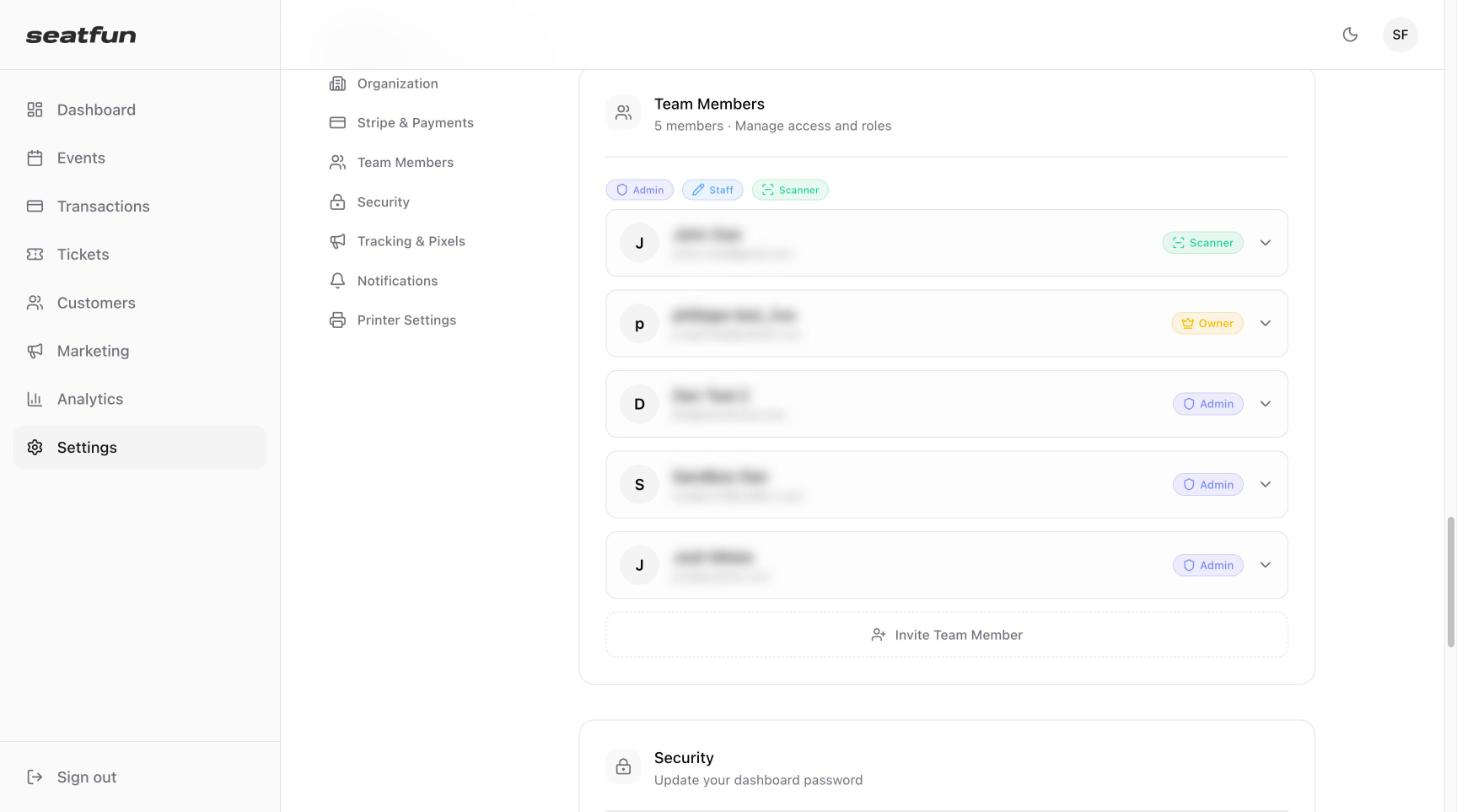
Select the arrow at the end of a member's row to see their email, phone number, the date they joined, and when they were last active.
Select the arrow at the end of the member's row.
Under Role, select Admin, Staff, or Scanner.
The Permissions line under the roles shows what the selected role allows.
If a role is almost right for someone, you can adjust individual permissions for that person under Custom Permissions (Advanced).
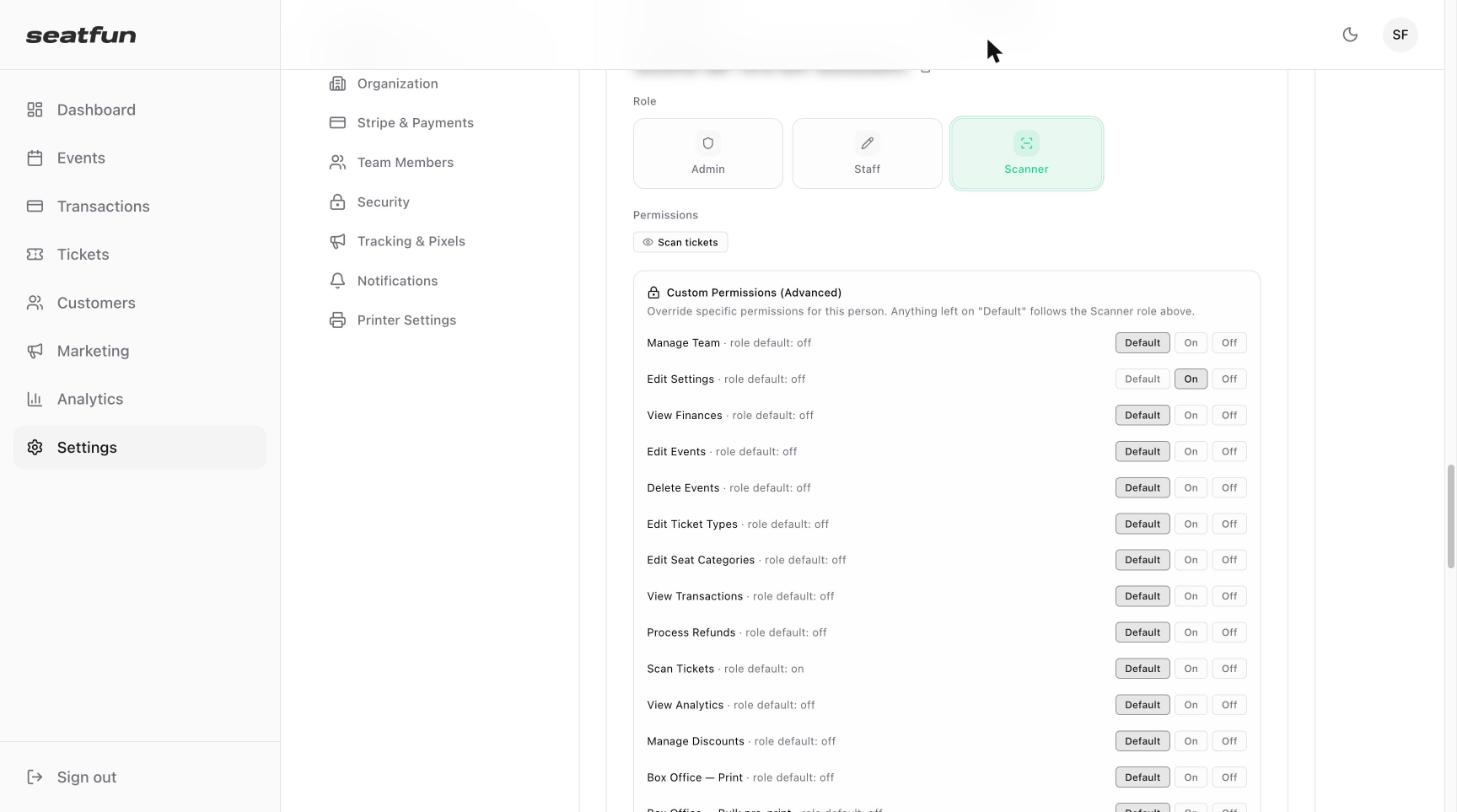
Each permission has three settings.
You can set these permissions individually:
Area | Permissions |
|---|---|
Team and settings | Manage Team, Edit Settings |
Events | Edit Events, Delete Events, Edit Ticket Types, Edit Seat Categories, Manage Discounts, Manage Add-ons |
Money | View Finances, View Transactions, Process Refunds, View Analytics |
At the door | Scan Tickets, Mobile POS: Sell Tickets |
Box office | Print, Bulk pre-print, Manage Devices |
Marketing | Send Email Blast, Manage Templates |

Select the arrow at the end of the member's row.
Scroll to the bottom of their details and select Remove Member.
