
Every SeatFun ticket has a QR code. Scanning it at the door checks the attendee in and updates your check-in numbers. You can scan with your own device or share a scanner link with your door staff.
Find the door tools
In the left menu, select Events.
Select the ⋯ menu at the end of your event's row, then select Open Command Center.
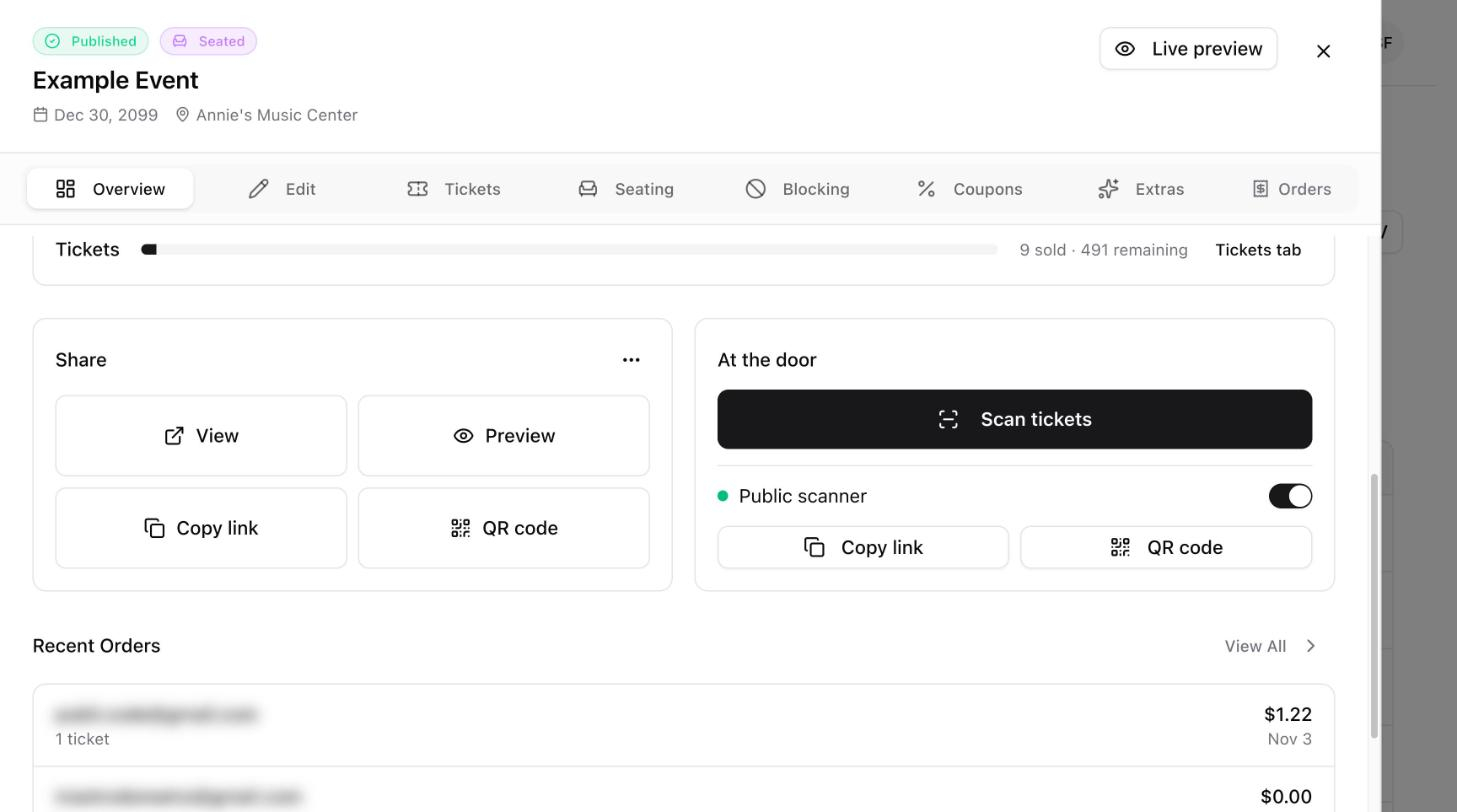
On the Overview tab, scroll to At the door.
Scan tickets with your own device
Under At the door, select Scan tickets.
If your browser asks for permission to use the camera, select Allow.
Hold the attendee's ticket QR code inside the frame on screen.
When you are finished, select Close.

Let door staff scan with the public scanner
The public scanner is a link that opens the scanner for this event. Share it with door staff so they can scan on their own phones.
Under At the door, turn on Public scanner.
Select Copy link to send the link to your staff, or select QR code so they can open the scanner by pointing their phone camera at your screen.
When you no longer want the link to work, turn Public scanner off.
Check someone in without scanning
If a ticket won't scan, you can check the attendee in by hand.
In the left menu, select Tickets and choose your event.
Search for the attendee by name or email.
Select the ⋯ menu at the end of the ticket's row, then select Manual Check-In.
Follow check-ins during the event
The event's Overview tab shows Checked In and Check-In Rate.
The Tickets page shows how many tickets are checked in and how many are still pending, and lets you filter the list by each.