An email blast sends one email to a group of your buyers. Use it to remind attendees about an upcoming event, share an update, thank people for coming, or announce a new event to past customers.
In the left menu, select Marketing.
Choose your event from the menu at the top of the page.
Select the Email Blast tab.
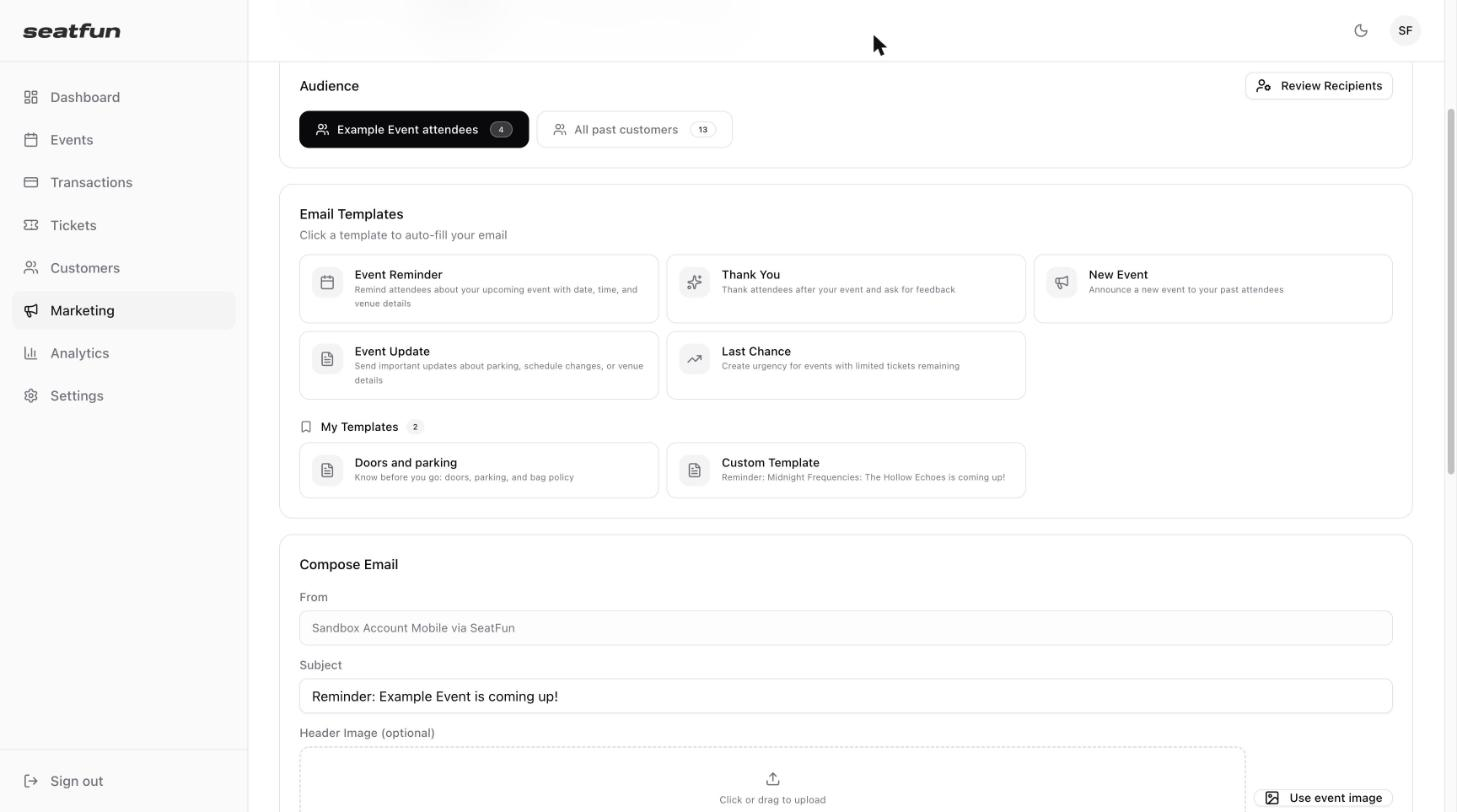
Under Audience, choose who receives the email.
Audience | Who it includes |
|---|---|
Event attendees | Everyone who has bought tickets to the selected event. |
All past customers | Everyone who has ever bought tickets from you. |
The number next to each option shows how many people it includes. Select Review Recipients to check the list before you send.
Select a template under Email Templates to fill in the subject and message for you. You can edit everything afterward.
Template | When to use it |
|---|---|
Event Reminder | Remind attendees about an upcoming event, with the date, time, and venue. |
Thank You | Thank attendees after the event and ask for feedback. |
New Event | Announce a new event to your past attendees. |
Event Update | Share important changes such as parking, schedule, or venue details. |
Last Chance | Create urgency when only a few tickets remain. |
Templates you have saved yourself appear under My Templates.
Under Compose Email, fill in the email.
Field | What to enter |
|---|---|
From | Filled in for you with your organization's name. |
Subject | The subject line recipients see in their inbox. |
Header Image | Optional. Upload a JPG or PNG up to 5MB, or select Use event image. |
Message | The body of your email. Select text to make it bold, italic, or a link. |
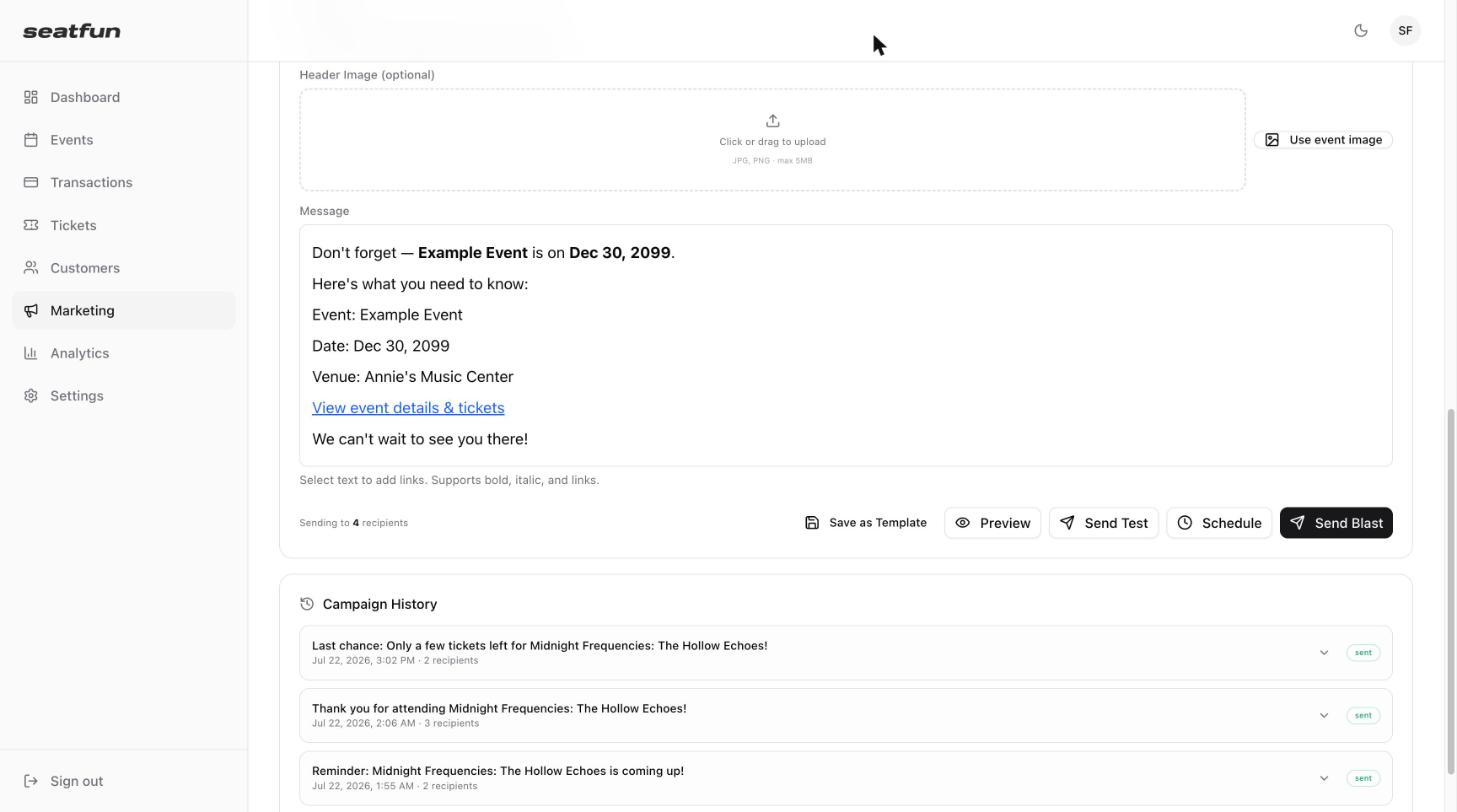
The line under the message shows how many recipients the email will go to. Use the buttons next to it to finish.
Button | What it does |
|---|---|
Save as Template | Saves the email under My Templates so you can reuse it. |
Preview | Shows how the email will look to recipients. |
Send Test | Sends a test copy so you can check it in a real inbox first. |
Schedule | Sets a date and time for the email to go out later. |
Send Blast | Sends the email to your audience now. |

Campaign History at the bottom of the tab lists the email blasts you have sent, with the subject, the date and time, the number of recipients, and the status. Select the arrow on a campaign to see more.
