The Tickets page lists every ticket issued for an event. Use it to find a specific ticket, see who has checked in, and help a buyer at the door.
In the left menu, select Tickets.
Select the All Events menu in the top right and choose an event. Tickets are shown one event at a time.
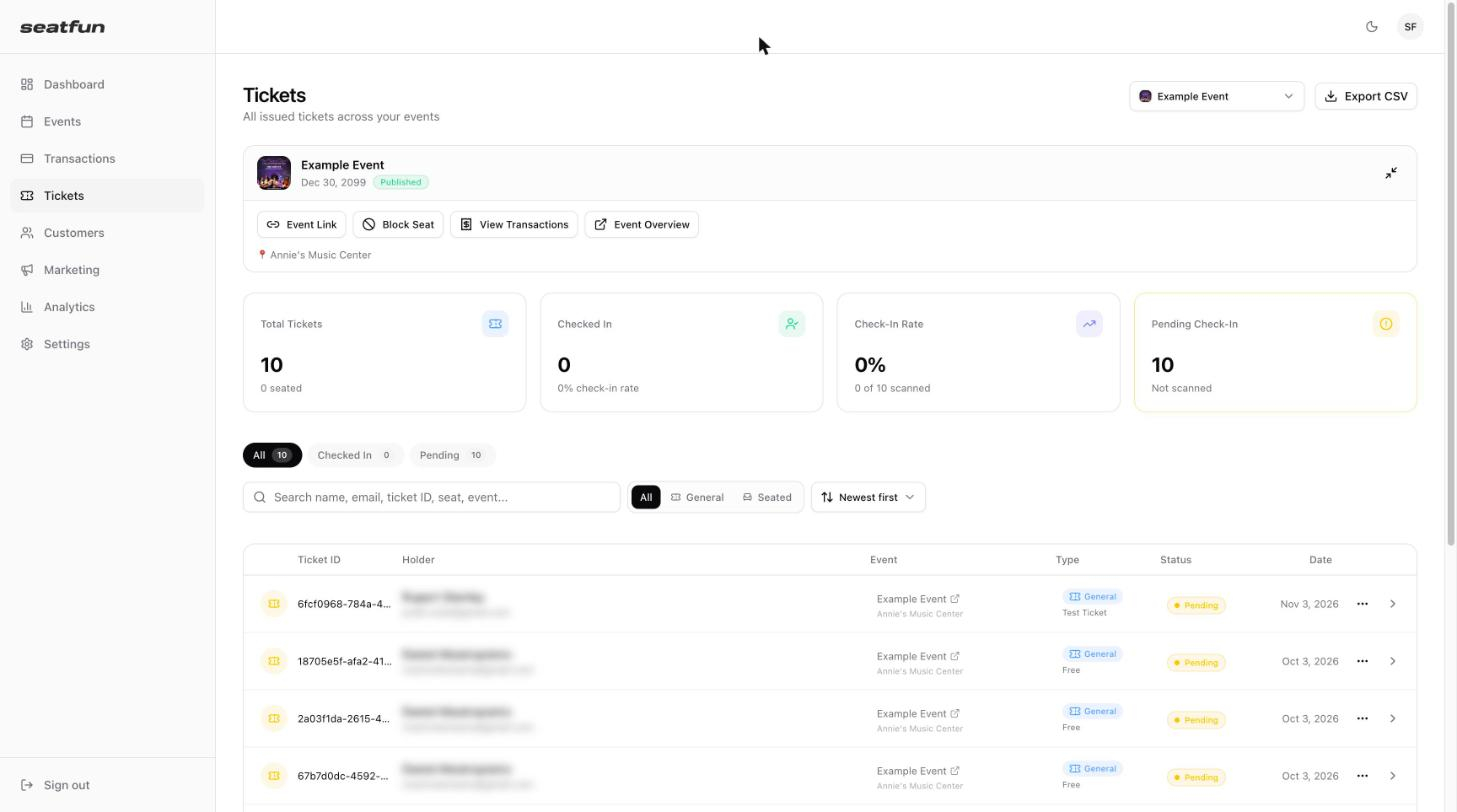
Four numbers at the top show how check-in is going.
Metric | What it shows |
|---|---|
Total Tickets | Number of tickets issued, and how many of them are for reserved seats. |
Checked In | Number of tickets that have been scanned. |
Check-In Rate | Share of issued tickets that have been scanned. |
Pending Check-In | Number of tickets that have not been scanned yet. |
By check-in status: Use the All, Checked In, and Pending tabs.
By ticket kind: Select General for general admission tickets or Seated for reserved seats.
By search: Type a name, email, ticket ID, seat, or event in the search box.
By date: Use the sort menu to change the order of the list.
Each row shows the ticket ID, the ticket holder, the event, the ticket type, the check-in status, and the date it was issued.
Select the arrow at the end of a ticket's row to expand it.
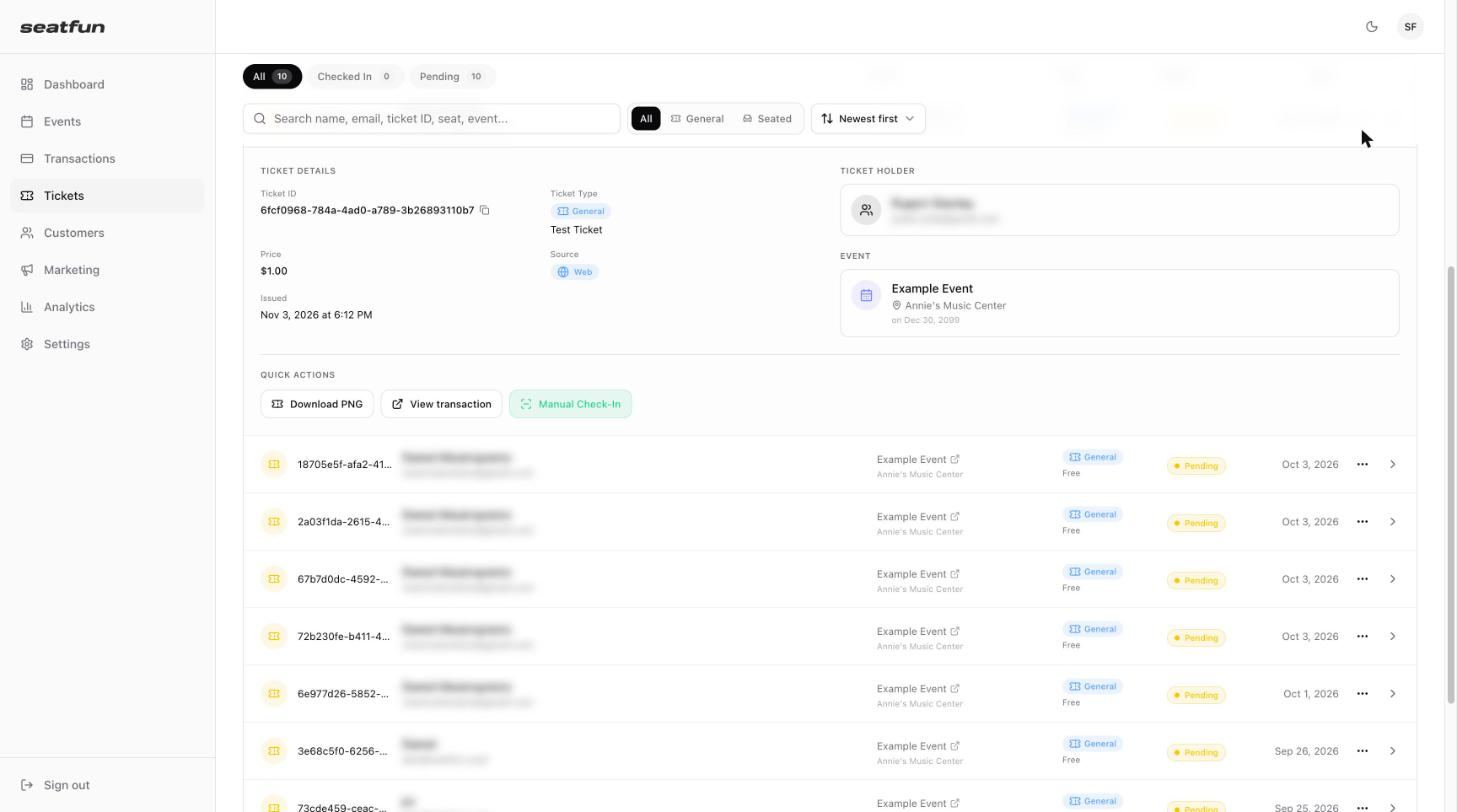
The expanded row shows the full ticket ID, ticket type, price, where it was sold, when it was issued, the ticket holder, and the event.
Use the Quick Actions in the expanded row, or select the ⋯ menu at the end of the row.
Action | What it does |
|---|---|
Download PNG | Downloads the ticket as an image file. |
View transaction | Opens the order the ticket was bought in. |
Manual Check-In | Checks the ticket in without scanning it. |
Transfer Ticket | Moves the ticket to a different ticket holder. Available from the ⋯ menu. |
Void Ticket | Cancels the ticket so it can no longer be used. Available from the ⋯ menu. |

Select Export CSV in the top right to download the event's tickets as a spreadsheet file.
