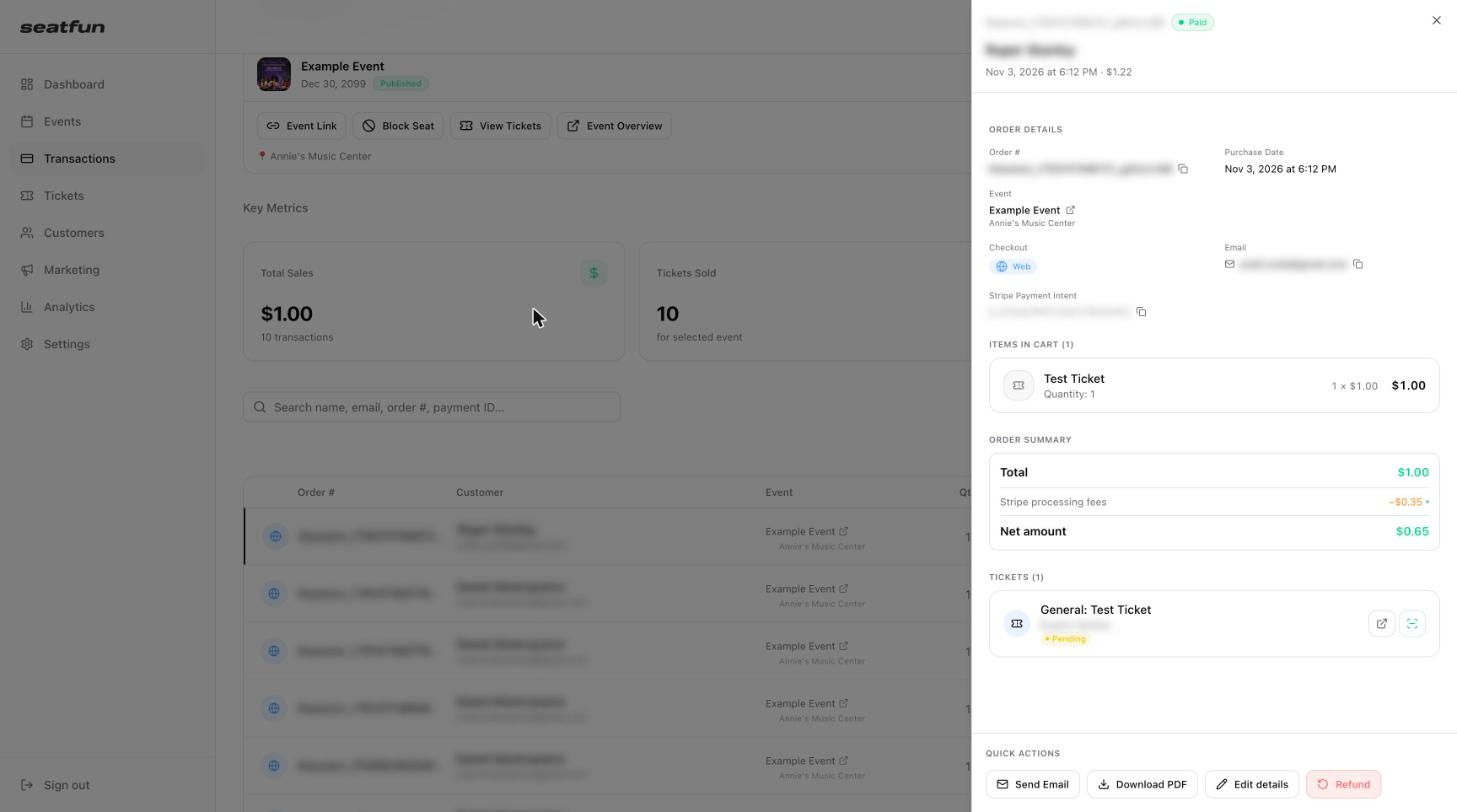
Every order has a detail view that shows what was bought, what was paid, and the tickets that were issued. From there you can resend the order by email, download it as a PDF, or correct a buyer's details.
In the left menu, select Transactions.
Find the order. Use the search box to look it up by name, email, order number, or payment ID.
Select the arrow at the end of the order's row. The order opens in a panel on the right.
Section | What it shows |
|---|---|
Order Details | Order number, purchase date, event, how the buyer checked out, the buyer's email, and the Stripe payment reference. Select the copy icon next to a value to copy it. |
Items in Cart | Each ticket type or add-on in the order, with quantity and price. |
Order Summary | The total paid, the Stripe processing fees, and the net amount you receive. |
Tickets | Each ticket issued for the order, with the ticket holder's name and check-in status. |
Use the Quick Actions at the bottom of the panel.
Action | What it does |
|---|---|
Send Email | Emails the order to the buyer again. Use this when a buyer can't find their tickets. |
Download PDF | Downloads the order as a PDF file. |

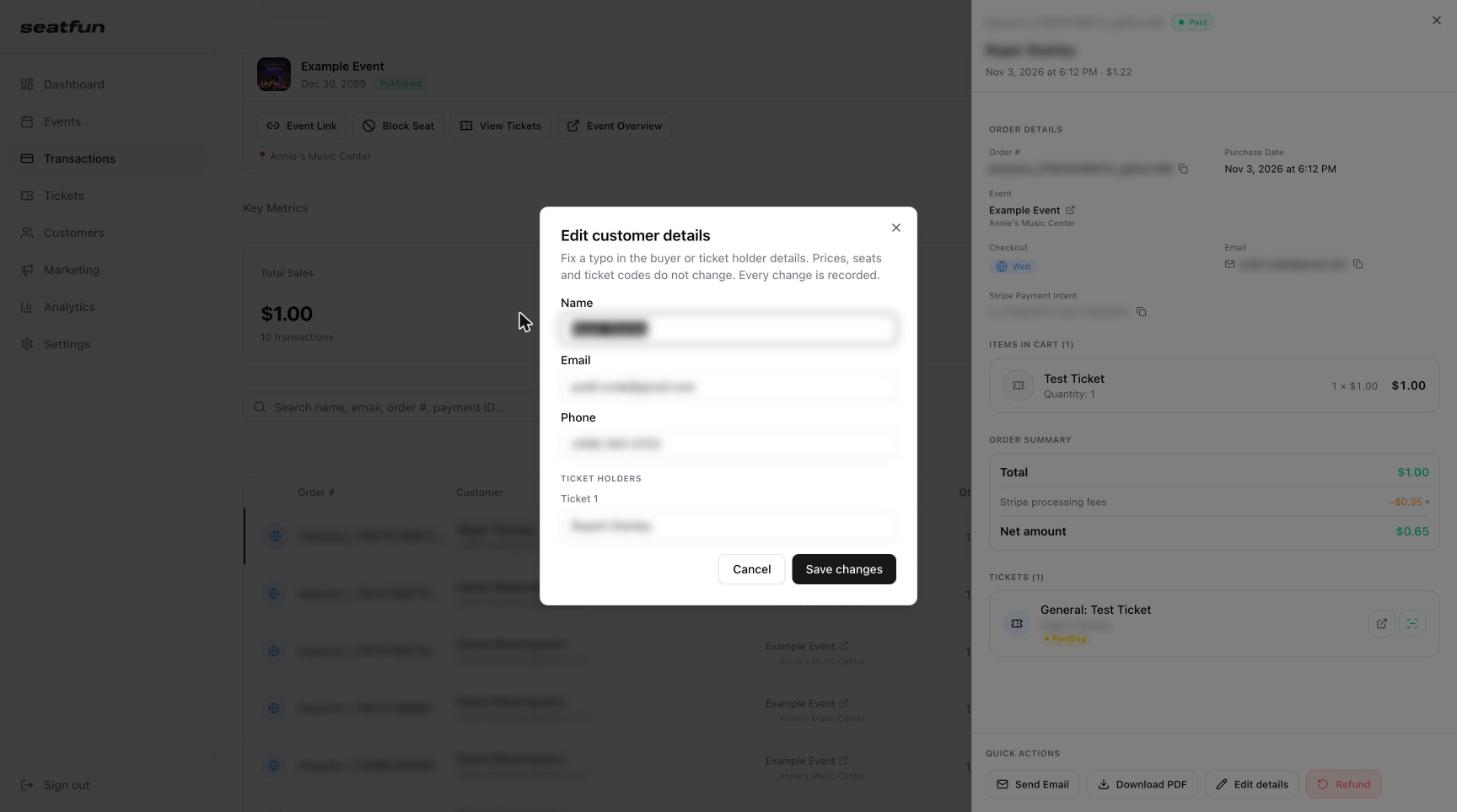
If a buyer made a typo at checkout, you can correct it.
Open the order and select Edit details.
Update the buyer's Name, Email, or Phone, or the name on a ticket under Ticket Holders.
Select Save changes.