The Transactions page lists every order and payment across your events. Use it to check sales, find a specific order, and export your records.
In the left menu, select Transactions. Each row is one order.
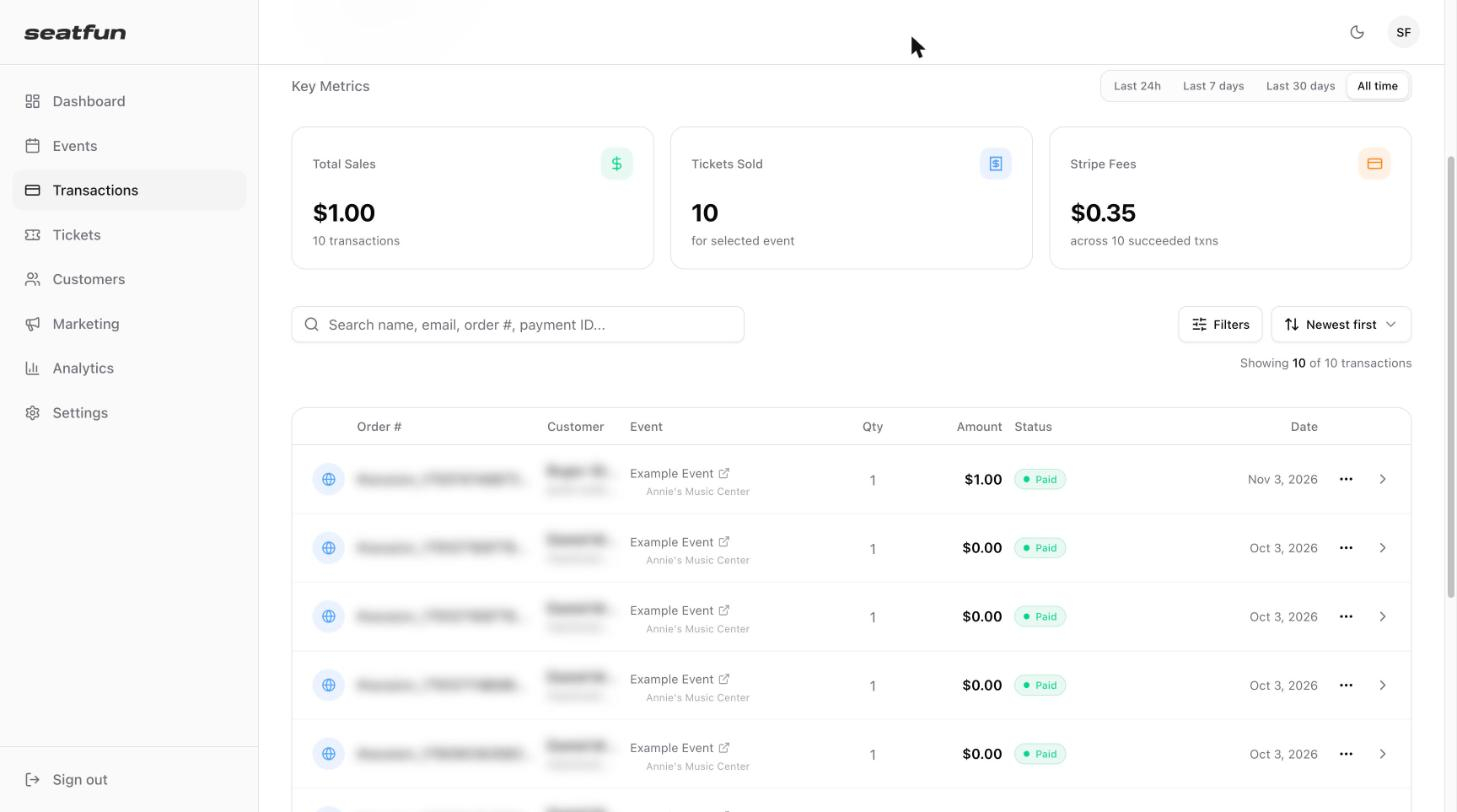
Column | What it shows |
|---|---|
Order # | The order number. The icon in front of it shows how the order was placed. |
Customer | The buyer's name and email address. |
Event | The event and venue the order is for. |
Qty | Number of tickets in the order. |
Amount | Total the buyer paid. |
Status | Whether the order is Paid or Refunded. |
Date | When the order was placed. |
Three numbers at the top summarize the orders in the selected time range.
Metric | What it shows |
|---|---|
Total Sales | Total amount collected and the number of transactions. |
Tickets Sold | Number of tickets sold. |
Stripe Fees | Payment processing fees charged on successful transactions. |
Use Last 24h, Last 7 days, Last 30 days, or All time to change the time range.
Select the All Events menu in the top right and choose an event. The page then shows only that event's orders and metrics, with shortcuts to the event link, seat blocking, the event's tickets, and the event overview.
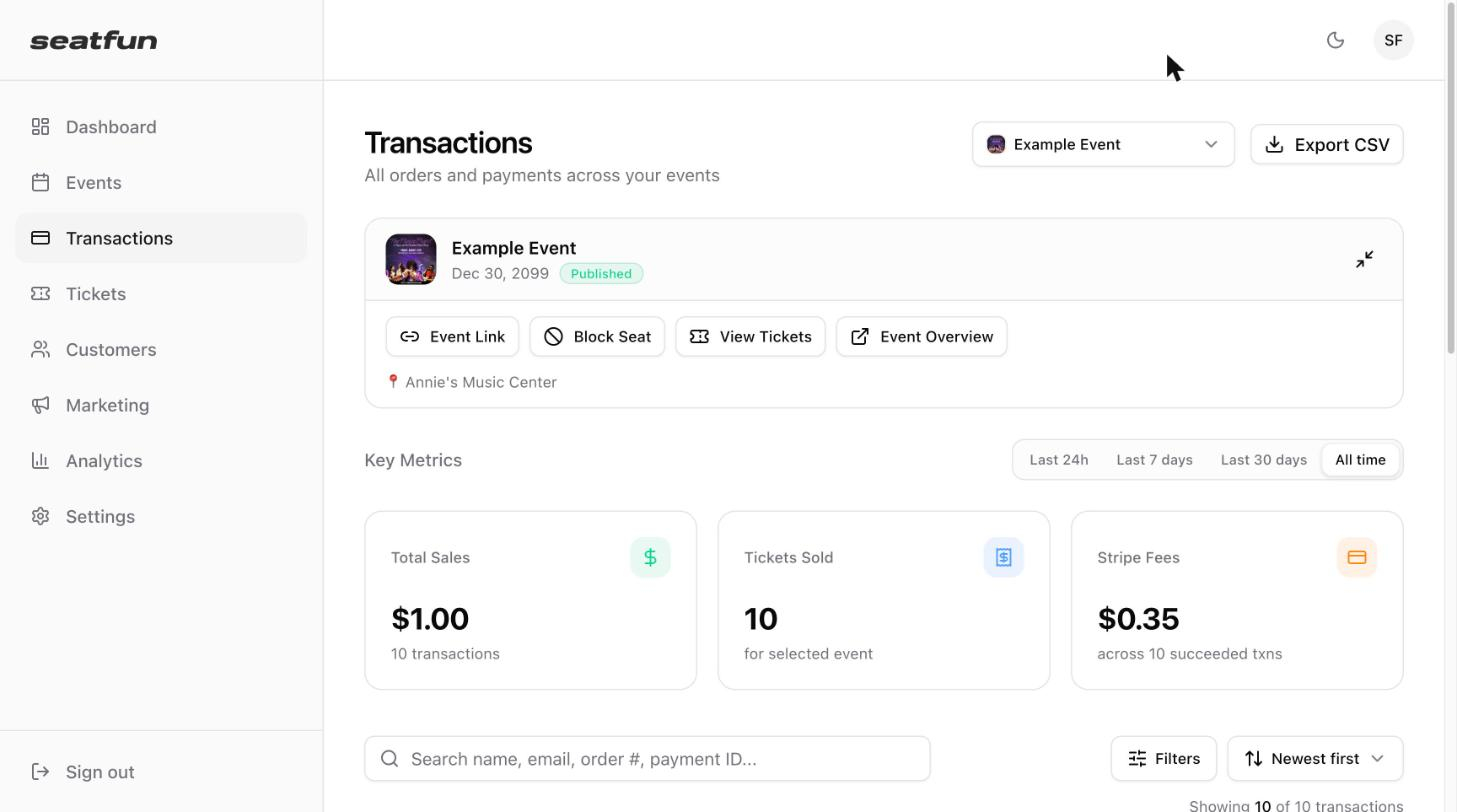

Type in the search box to find an order by the buyer's name, email, order number, or payment ID.
Select Filters to narrow the list.
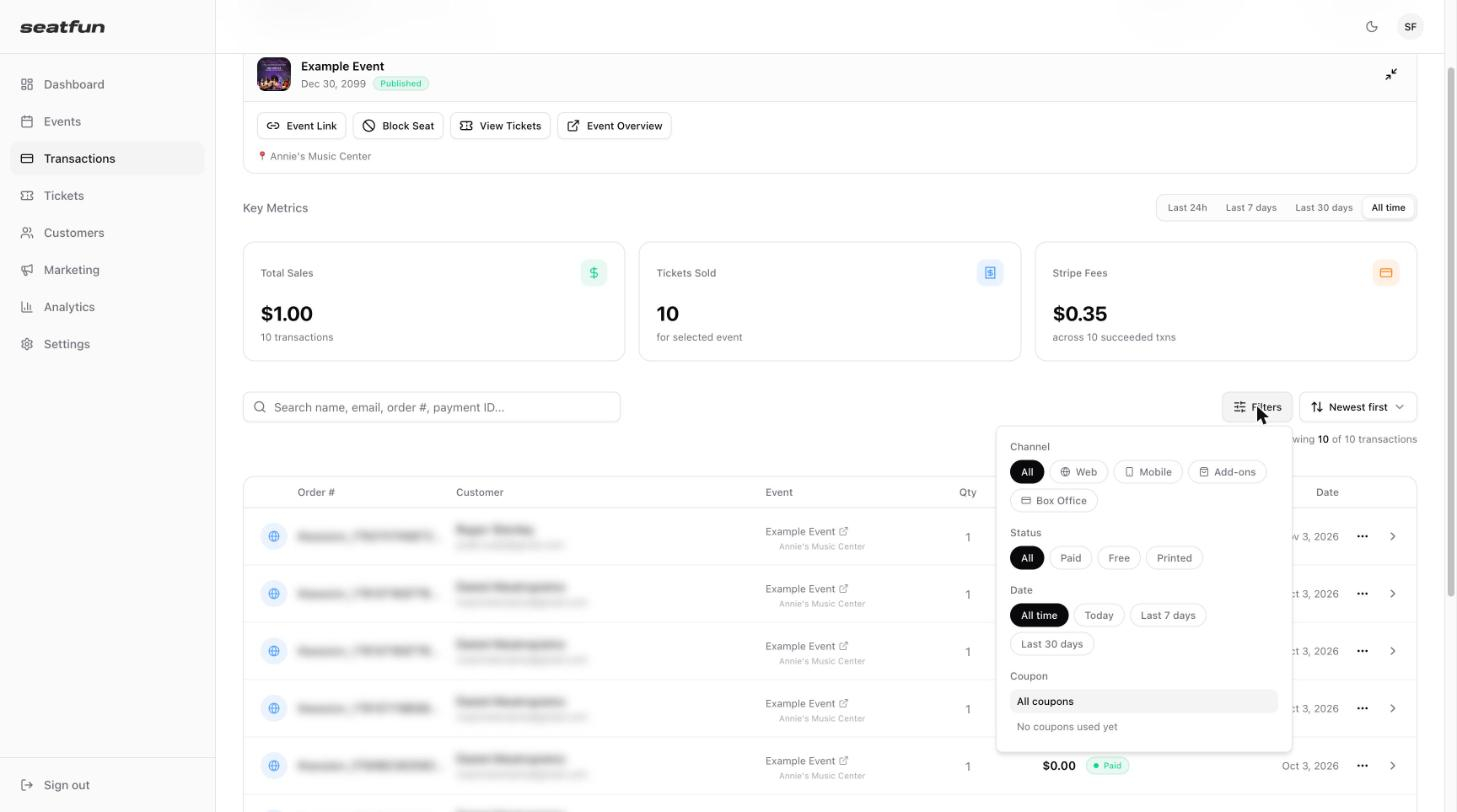
Filter | Options |
|---|---|
Channel | All, Web, Mobile, Add-ons, Box Office |
Status | All, Paid, Free, Printed |
Date | All time, Today, Last 7 days, Last 30 days |
Coupon | All coupons, or a specific discount code that buyers have used |
Select the sort menu next to Filters and choose Newest first, Oldest first, Highest amount, or Lowest amount.
Select Export CSV in the top right to download the transactions as a spreadsheet file.
