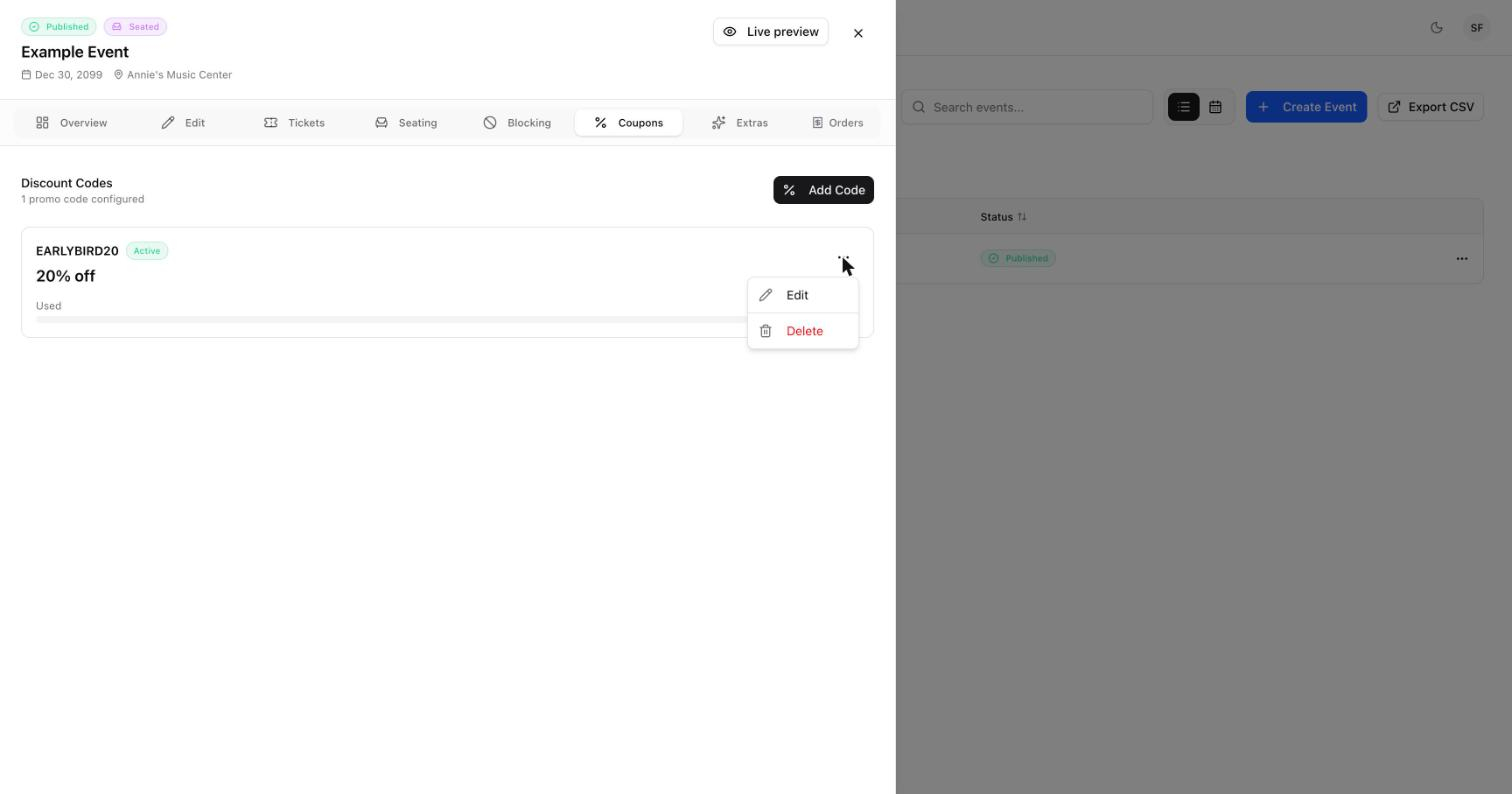
Discount codes give buyers a percentage off their order. You decide the code, the size of the discount, and how many times it can be used.

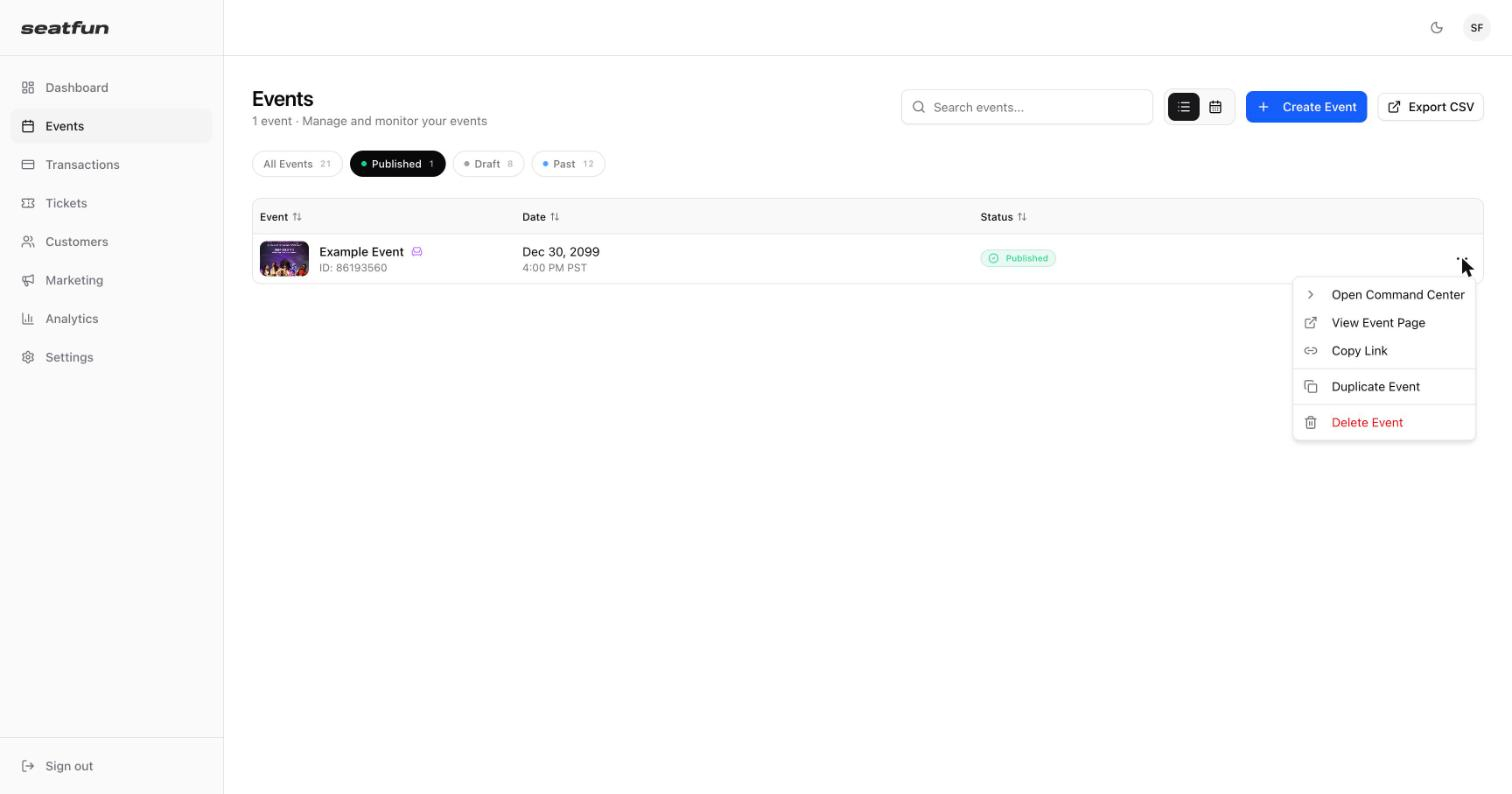
In the left menu, select Events.
Find your event, select the ⋯ menu at the end of its row, then select Open Command Center.
In the Command Center, select the Coupons tab. Any codes you have already created for this event are listed here.
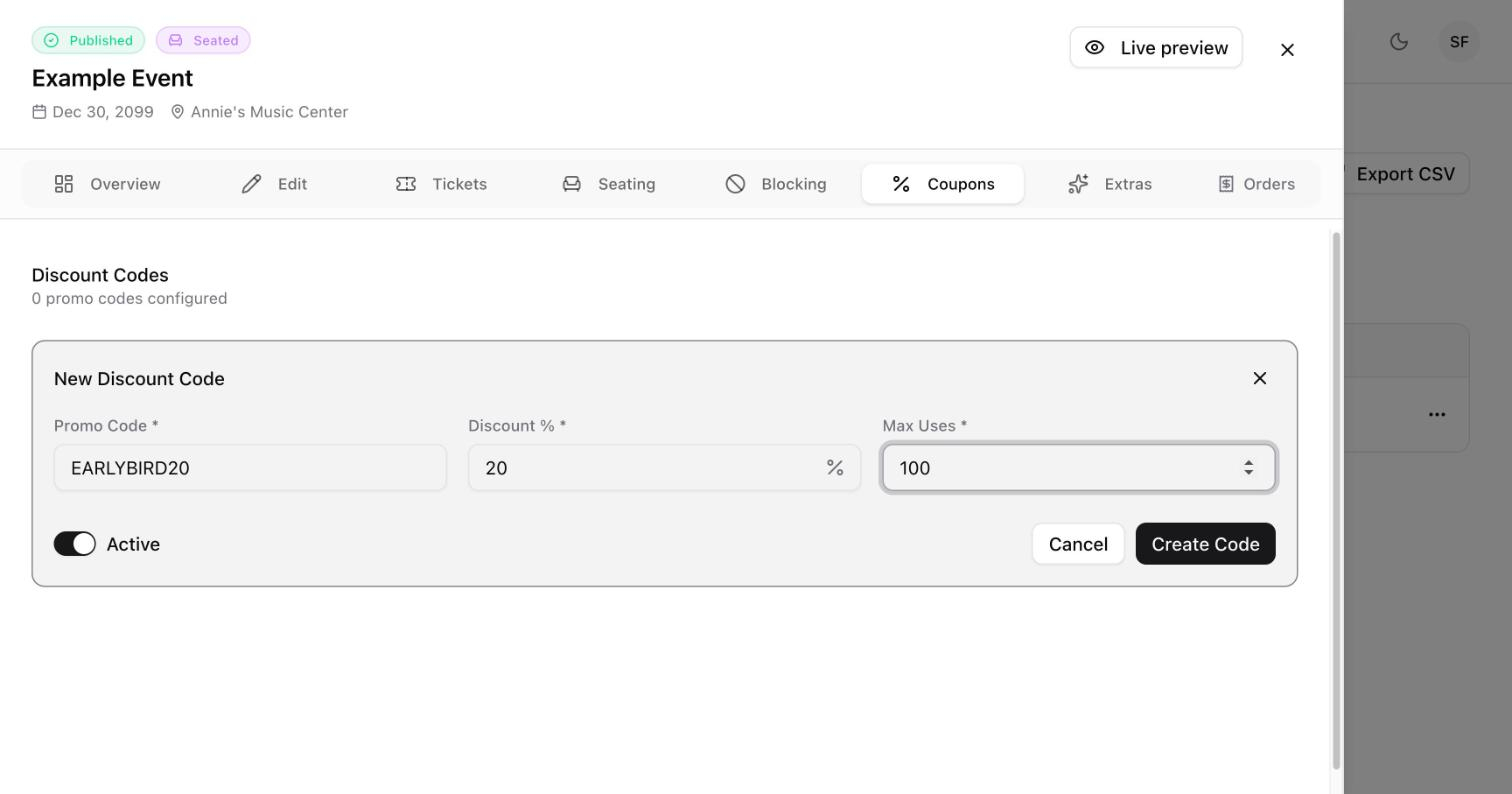
Select Add Code. The New Discount Code form opens.
Fill in the three required fields.
Field | What to enter |
|---|---|
Promo Code | The code buyers will type, for example |
Discount % | The percentage taken off, for example |
Max Uses | The total number of times the code can be redeemed, for example |
Leave the Active switch on if you want the code to work right away.
Select Create Code.
A confirmation message appears and the new code shows in the list with an Active badge, its discount, and a usage counter.
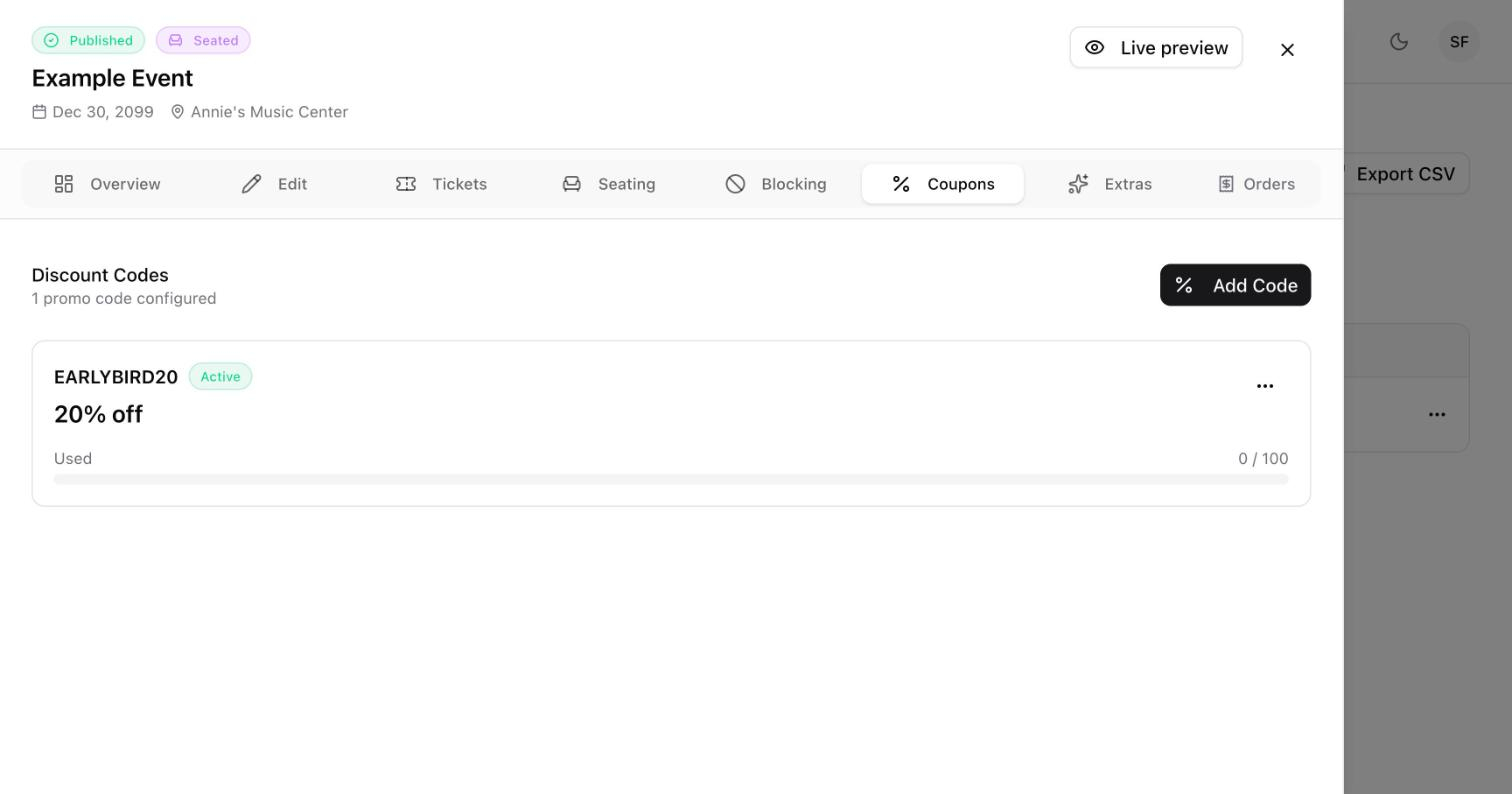
EARLYBIRD20, helps buyers and your team remember what it does.Each code shows a Used bar with the number of redemptions against the limit you set, for example 0 / 100.
To see the orders that used a code, go to Transactions, select Filters, and choose the code under Coupon.
Open the event's Coupons tab.
Select the ⋯ menu on the code.
Select Edit to change the discount percentage, the usage limit, or the Active switch, then select Save Changes. Select Delete to remove the code.