FAQs and highlights help buyers decide before they purchase. FAQs answer common questions on your checkout page. Highlights are short cards that call out what makes the event special.
In the left menu, select Events.
Select the ⋯ menu at the end of your event's row, then select Open Command Center.
Select the Extras tab and scroll to FAQs.
Turn on Enable FAQs to show FAQs on the checkout page.
Select Add your first FAQ.
Type the Question, for example Is there parking at the venue?
Type the Answer. Answers can include bold text, italic text, and links.
Select Add another FAQ for each extra question.
Select Save FAQs.
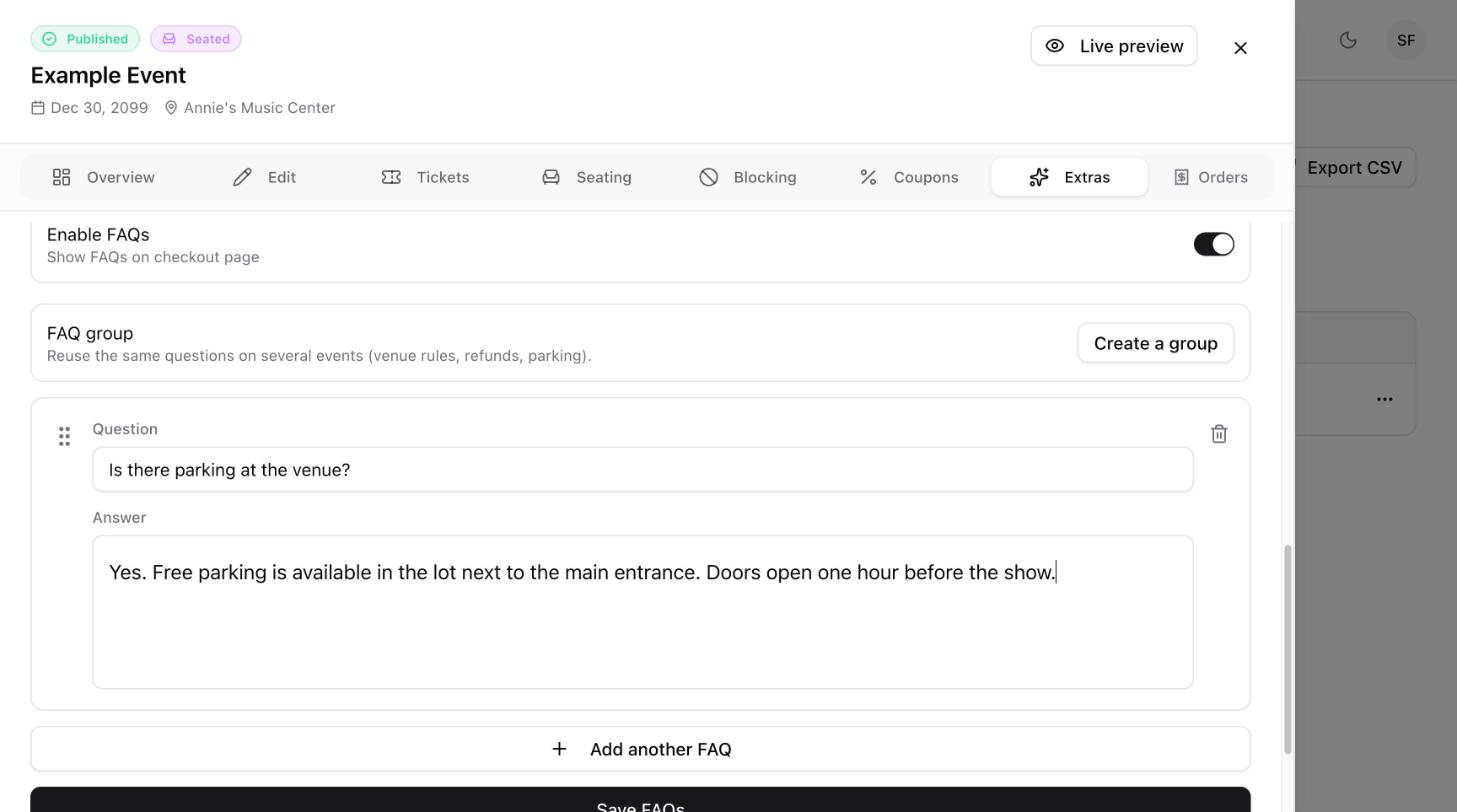
Drag the six-dot handle on the left of a question to move it up or down.
Select the trash icon on a question to remove it.
Select Save FAQs to keep your changes.
If you answer the same questions for every event, such as venue rules, refunds, or parking, select Create a group next to FAQ group. A group lets you reuse one set of questions on several events.

Highlights are cards shown on the checkout page. Each card has an icon, a title, and a subtitle.
In the Command Center, select the Edit tab.
Scroll down to Highlights.
Select the Icon button and choose an icon. Use the search box to find one quickly.
Enter a Title of up to 50 characters, for example Free parking.
Enter a Subtitle of up to 40 characters, for example Included with every ticket.
Select Add another highlight to add more cards.
Select Save Changes.
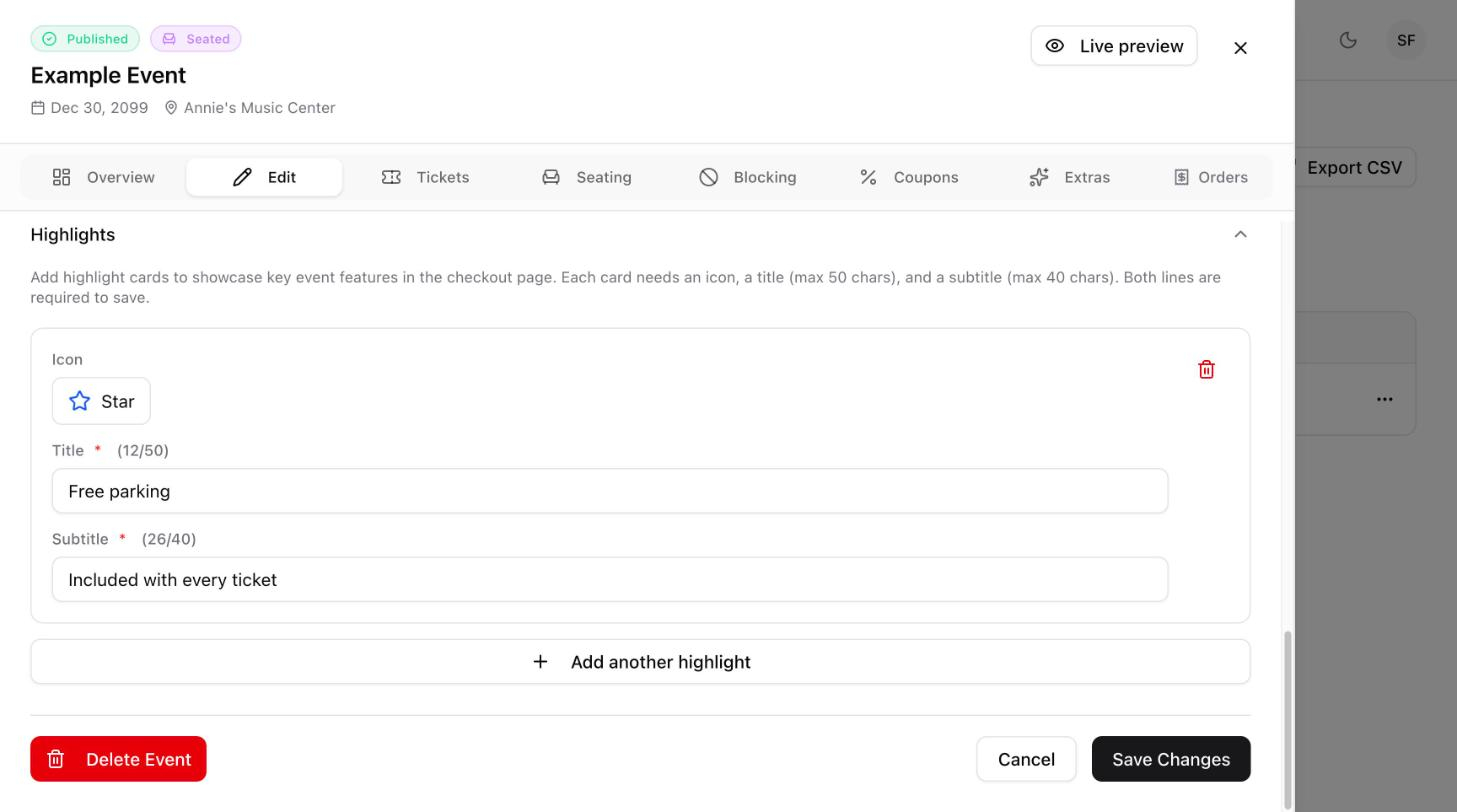

To remove a highlight, select the trash icon on its card, then select Save Changes.
