
Custom fees let you add your own charge to an order, such as sales tax, a facility fee, or a processing fee. The fee is calculated as a percentage of the order subtotal.
You can set a separate fee for each way you sell.
Fee | Where it applies |
|---|---|
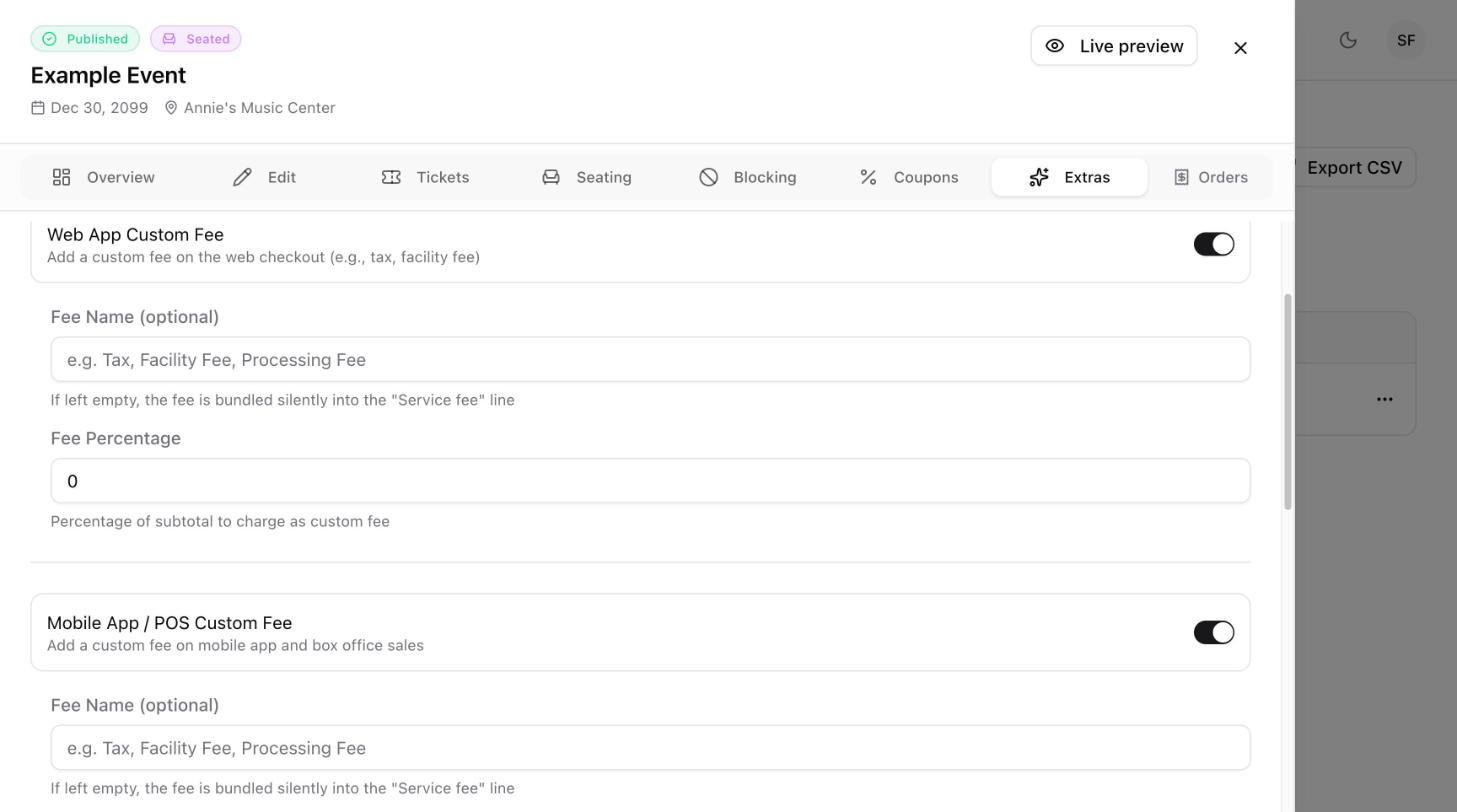
Web App Custom Fee | Orders placed through your online event page. |
Mobile App / POS Custom Fee | Orders placed through the mobile app and at the box office. |
Add a custom fee
In the left menu, select Events.
Select the ⋯ menu at the end of your event's row, then select Open Command Center.
Select the Extras tab.
Turn on Web App Custom Fee, Mobile App / POS Custom Fee, or both. A Custom fee enabled message confirms the change.
Fill in the fields that appear under the fee.
Field | What to enter |
|---|---|
Fee Name | Optional. The label buyers see at checkout, for example |
Fee Percentage | The percentage of the order subtotal to charge, for example |

Use different fees online and in person
Each fee has its own name and percentage, so you can charge one rate online and another at the door. For example, you might add a facility fee to online orders only.
Remove a custom fee
Go back to the Extras tab and turn the fee's switch off.